
How to Set Up the FlightScope Mevo Gen 2 for Indoor Simulator Use
Jay's exact indoor setup — the real distances, tilt angles, calibration steps, and lighting tips he uses every day to get the best results from his Mevo Gen 2. This is why his data looks so clean.
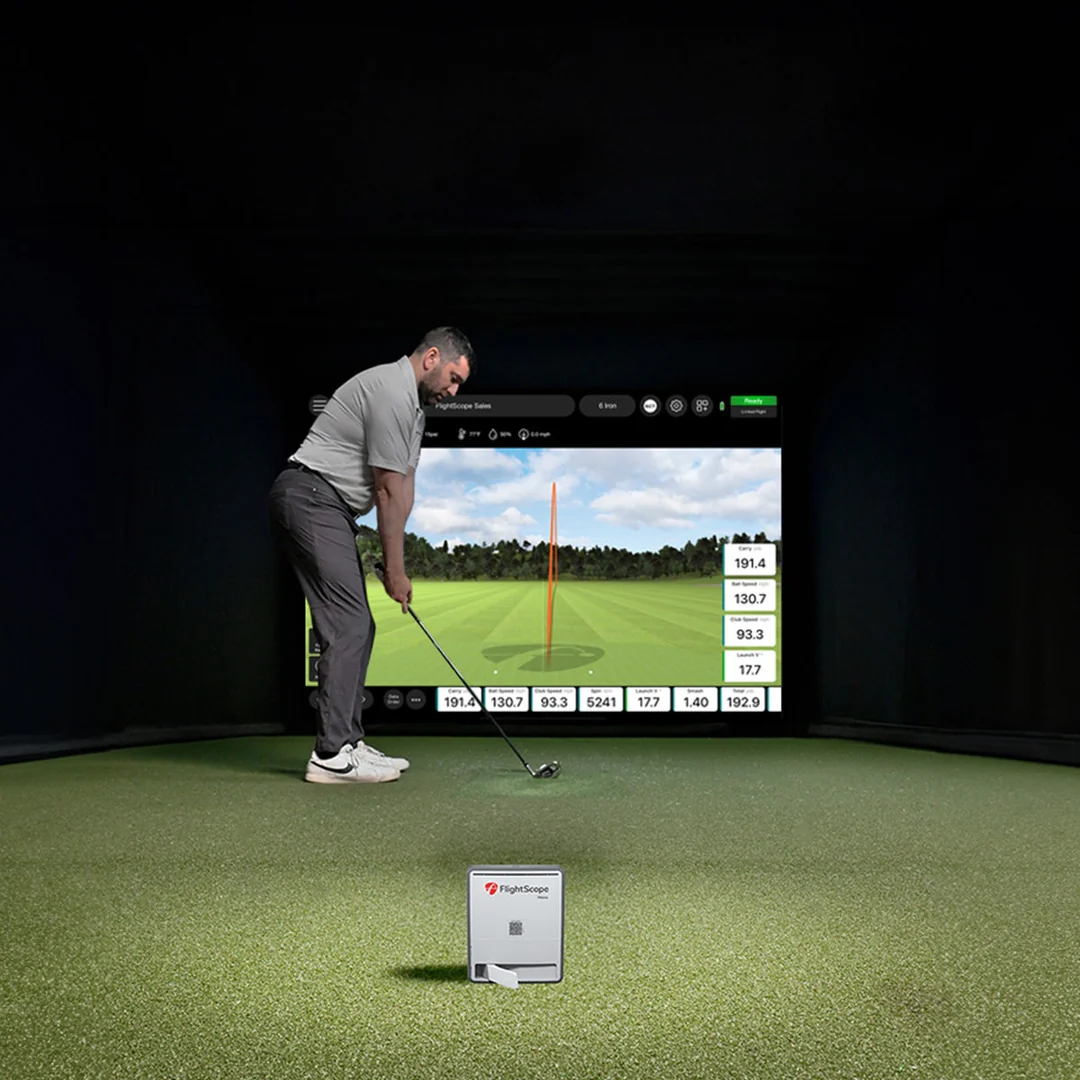
The Complete Mevo Gen 2 Indoor Setup — In Under 3 Minutes
Jay put together this quick setup walkthrough showing exactly how he positions his Mevo Gen 2, configures the FS Golf app, runs the calibration, and verifies everything is working before a session. Watch it first, then follow the step-by-step breakdown below.
The biggest takeaway from Jay's setup: most accuracy problems with the Mevo Gen 2 are setup problems, not hardware problems. Get the distances right, tilt it correctly, run the calibration, and sort your lighting — and the data quality improves dramatically. Here is exactly how to do it.
The Numbers That Matter
Get these three measurements right before anything else. These are the actual numbers Jay uses in the GSV studio — not the minimum spec from the manual, but the real-world distances that consistently produce clean data.
Jay's Take: Everybody always wonders why I get such good results. A lot of it just has to do with setup. Get these three numbers dialed in first and everything else gets easier.
How to Set Up the Mevo Gen 2 Indoors — Jay's Full Process
Position the Unit
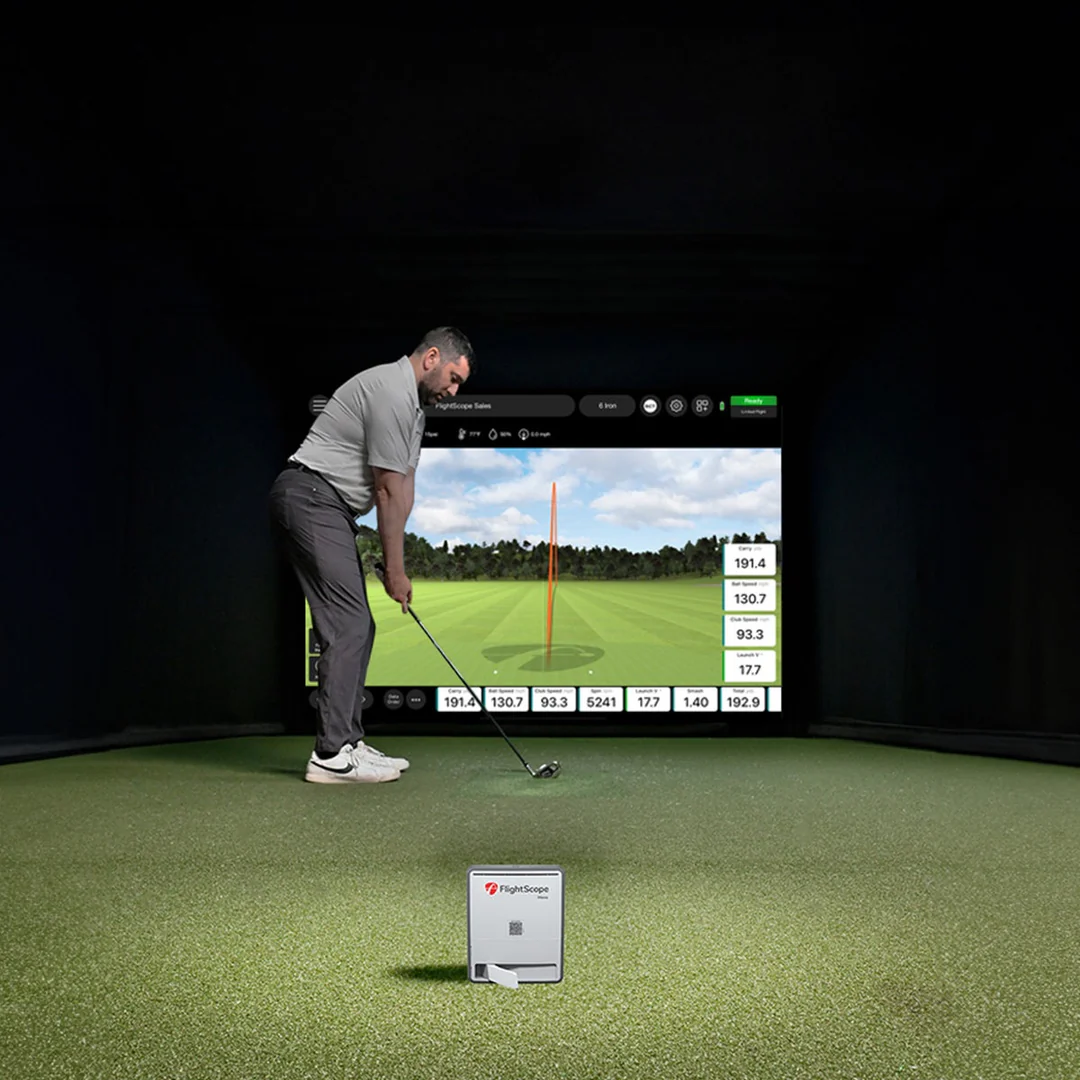
Place the Mevo Gen 2 on the floor directly behind the ball on your target line. You can lean it against a wall for stability — that is what Jay does — or use the included kickstand. Either works fine as long as the unit stays stable and does not move during your session.
Distance: Position the unit 7 to 8 feet from the ball. Jay runs just over 7 feet. More distance gives the radar more ball flight to read, which improves data quality — particularly for spin. Do not go shorter than this if you can avoid it.
Set the Tilt
Tilt the unit back so it is angled slightly upward toward the ball. For indoor use, Jay recommends 11° to 13° tilt — he personally stays in the 11° to 12° range. The FS Golf app shows you the exact tilt reading in real time so you do not need to guess.
In the app, Jay shows his unit reading 11.2° with almost completely flat horizontal alignment. Both readings are displayed in the setup screen — check both before moving on.
Set Ball-to-Screen Distance
Make sure you have at least 10 feet of distance from the ball to your impact screen or net. Jay runs just over 10 feet. This gives the Mevo Gen 2 enough ball flight to read the data accurately before the ball hits the screen. The more room you have here the better.
Set Target Alignment in the App
In the FS Golf app, go to Calibration and set your target alignment. This tells the app exactly where you are hitting from relative to the unit. Jay emphasizes getting this centered on the line — it is important for accurate launch direction and shot shape readings.
Use the slider in the calibration screen to adjust how far forward or back the hitting position is if needed. In most setups at 7 to 8 feet this will not require much adjustment, but it is worth checking.
Run Setup Verification
Once alignment is set, go to Setup Verification in the app. Grab a club — Jay uses a pitching wedge — and hit a one-handed shot. This is not a real swing, just enough to measure where the ball is launching from relative to the sensor. The app will tell you how far left or right your ball position is from the center of the hitting zone.
Jay's first verification shot showed 0.2° to the right of center — essentially perfect. If yours shows a larger offset, adjust your ball position slightly and re-verify. You want to be within a degree or two of center.
Pro tip: Hit two or three verification shots and check the spread. If they are consistent you are set up correctly. If they vary significantly, recheck your tilt and alignment before starting your session.
Use an RCT Ball for Best Indoor Spin
For indoor use, Jay uses and recommends the Titleist RCT (Radar Capture Technology) ball. The RCT ball has a special coating that helps the Mevo Gen 2's Fusion Tracking technology measure spin more accurately indoors, where the ball does not travel far enough for the radar to fully read spin from ball flight alone.
This is one of the most impactful things you can do to improve data quality on the Mevo Gen 2 indoors. The difference in spin reading consistency between an RCT ball and a standard range ball is noticeable.
Sort Your Lighting
Lighting is the most overlooked setup variable on the Mevo Gen 2 — and according to Jay it matters for everything including putting. The FS Golf app has a built-in lux reading that tells you whether your lighting is sufficient. Jay recommends getting a cheap lux meter if you want to dial it in precisely, though the in-app reading is a good guide.
What to light: Focus on the area from the Mevo Gen 2 unit all the way to a few feet in front of the ball. This is the zone the Fusion Tracking technology needs to see clearly to work at its best. Adequate lighting in this zone maximizes the camera component of Fusion Tracking — which directly affects spin accuracy and overall data quality.
Jay's note: Follow the lux instructions in the app. Get a cheap lux meter if you want to be precise — it is not expensive. Or just light up what feels appropriate and the app will tell you if it's sufficient enough.
Ready to buy the Mevo Gen 2? Use code GSVMEVO at FlightScope.com to save on your purchase.
Buy Mevo Gen 2 — Code GSVMEVOMevo Gen 2 Full Review — Unboxing, Testing & GSPro
Want to see the Mevo Gen 2 in action beyond the setup? Jay's full review covers the unboxing, indoor and outdoor accuracy testing, the complete FS Golf app walkthrough, GSPro integration, putting mode, and the Pro Package upgrade. Watch this before deciding whether the Mevo Gen 2 is right for your simulator build.
Get the Best Price on the Mevo Gen 2
Use code GSVMEVO at FlightScope.com to save on the Mevo Gen 2, the Pro Package, and the Face Impact Location add-on. The code applies to all Mevo Gen 2 configurations including the bundle with Pro Package at ~$1,998 and the full bundle with Pro Package and Face Impact at ~$2,274.
If you have questions about whether the Mevo Gen 2 is right for your specific space, ceiling height, or simulator goals — email Jay. He is happy to help before you buy.
Mevo Gen 2 Indoor Setup FAQ
How far should the Mevo Gen 2 be from the ball indoors?
Jay positions his Mevo Gen 2 just over 7 feet from the ball for indoor use, within the recommended 7 to 8 foot range. More distance gives the radar more ball flight to read and improves spin accuracy. The minimum FlightScope recommends is 8 feet for indoor use.
What tilt angle should I use for the Mevo Gen 2 indoors?
Jay recommends 11° to 13° tilt for indoor use and personally runs between 11° and 12°. The FS Golf app displays your exact tilt reading in real time so you can dial it in precisely. He also ensures the unit is almost completely flat horizontally — the app shows both readings simultaneously.
What ball should I use with the Mevo Gen 2 indoors?
Jay uses and recommends the Titleist RCT (Radar Capture Technology) ball for indoor use. The RCT ball's special coating helps the Mevo Gen 2's Fusion Tracking technology measure spin more accurately indoors. Standard balls work but spin data is noticeably more consistent with the RCT ball.
How important is lighting for the Mevo Gen 2?
Very important — and often overlooked. The FS Golf app has a built-in lux reading. Jay recommends lighting the area from the unit to a few feet in front of the ball. This maximizes the camera component of Fusion Tracking which affects spin accuracy, data quality, and even putting performance. A cheap lux meter helps if you want to verify you are hitting the recommended level.
What is Setup Verification on the Mevo Gen 2?
Setup Verification is a feature in the FS Golf app that confirms your ball position is properly centered in the hitting zone. You take a one-handed shot with any club and the app tells you how far left or right your ball position is from the sensor center. Jay aims to be within a degree or two of center. It is a quick step that confirms everything is correctly positioned before you start your actual session.
Can I lean the Mevo Gen 2 against a wall instead of using the kickstand?
Yes — that is exactly what Jay does. Leaning it against a wall provides stable support. The kickstand that comes with the unit also works fine. Either method is acceptable as long as the unit stays stable and maintains the correct tilt angle throughout your session.
Ready to Build Your Mevo Gen 2 Simulator?
Use code GSVMEVO at FlightScope.com to save on the Mevo Gen 2. Email Jay for free setup advice and simulator planning before you buy.
→ Buy Mevo Gen 2 — Code GSVMEVO → Mevo Gen 2 + Pro Package (~$1,998) ✉ Email Jay — Free AdviceBuild the rest of your sim
- Enclosure and screen$250 off at Shop Indoor GolfShop
- Carl's Place enclosure5% off, code sent by emailShopGet the code
- Hitting mat$20 off at Shop Indoor Golf. GSV5OFF is more on a first order over $400Shop
- Projector5% off at Shop Indoor Golf. First-time buyersShop
- Simulator computerSurfThing: $100 off applied automatically, no codeShop
- TouchscreenGSV code for TouchscreenGuruShop
- Complete package$250 off at Shop Indoor Golf. GSV5OFF is more on a first order over $5,000Shop
GSV earns a small commission on these links, at no extra cost to you. Shop Indoor Golf takes one code per order.