The full guide: FlightScope Mevo Gen 2 review
FlightScope released a free update to its FS Golf app on October 6, 2026. It is version 10.0.0 on iPhone and iPad, 9.0.0 on Android and 26.0.0 on a Windows PC, and it brings a new home screen, practice targets, a trajectory view you can restyle, Smart Data Margins, a button that takes the wind out of your numbers, and a rebuilt video section. Jay Lasco, host of Golf Simulator Videos, tested the PC version indoors on a FlightScope Mevo Gen 2, and the video, published on October 7, 2026, is at the top of this page. Most of it worked well. Two things did not work during the recording, and both are covered below.
- Freeupdate, no subscription
- 10.0.0iOS version. Windows is 26.0.0
- Oct. 6, 2026announced by FlightScope
- PC, iOS, AndroidFS Golf runs on all three
- $1,299Mevo Gen 2. $1,234.05 with GSVMEVO
- Pro Packageneeded for Smart Data Margins
What is new in the FS Golf app update
This is FlightScope’s own list, from its announcement of October 6, 2026:
| Feature | What FlightScope says it does |
|---|---|
| Redesigned interface and light mode | An updated home screen layout, customizable trajectory views and a light mode for bright outdoor or indoor lighting |
| In-session targets | An interactive target for full swing and chipping sessions, with adjustable distance, size and offset, and an option to randomize the target |
| Enhanced trajectory view | Custom options for the sky, the trees and the hitting surface |
| Smart Data Margins | AI-powered margin ranges that adapt to skill level, set per club. For X3, X3C and Mevo Gen2 users with the Pro Package |
| Smart video gallery and highlights | One video gallery, with automatic highlights for maximum carry, maximum ball speed, maximum club speed and best smash factor |
| Side-by-side video sync | Two swings compared at once, with synchronized playback and markup tools |
| Normalize shot data | Takes the effect of wind out of the numbers, in a live session or a past one |
| Faster session start | A saved default starting club, ball choice and dashboard preferences |
The App Store notes for version 10.0.0 list the same things in fewer words: an updated home screen, a new session setup flow, a customizable trajectory view with target options, a new video section with gallery, comparisons and highlights, smart data margins, and an easy access normalized data button.
Is the FS Golf update free?
Yes. FlightScope’s announcement is headed “at no additional cost”, and the FS Golf app itself is free to download. FlightScope’s Mevo Gen2 page says “All core data parameters, firmware updates, and software fixes for the FlightScope Mevo Gen2 are completely free with no subscription required.”
One new feature sits behind a paid add-on. FlightScope lists Smart Data Margins for X3, X3C and Mevo Gen2 users with the Pro Package. The Pro Package is a one-time software add-on, not a subscription, and GSV covers what it adds in the Mevo Gen 2 Pro Package guide. Face Impact Location, which appears in the video, is a separate add-on.
What GSV found testing it on a Mevo Gen 2
- Launch monitor: FlightScope Mevo Gen 2 with the Pro Package and Face Impact Location add-ons, and advanced Fusion on.
- App: FS Golf on a PC, with the new update installed.
- Where: indoors, off a mat, with a Titleist RCT ball and a pitching wedge.
What worked well
- Setup shows distance, tilt and roll live, so nudging the unit by hand is enough to dial it in
- A data margin flagged a pitching wedge that flew past its window the moment the shot landed
- Targets: GSV typed a distance for the club and the next shot was scored against it
- The trajectory view: sky, trees, surface, camera and trajectory line can all be changed
- The FS Multicam app on an iPhone connected by scanning a QR code, in seconds
What was rough in this build
- Dragging the data tiles to reorder them did nothing, though the screen says to drag and drop
- The follow-ball camera sits too close to the ball to read the shot
- The follow and broadcast cameras cut back to the tee before the eye can see how the ball finished
- No swing video was saved during the recording: not from a camera connected to the PC, not from FS Multicam and not from the unit’s own camera
Four more things were shown in the video without being put to the test: Normalize, which is one button on the session screen (there is no wind indoors to take out), randomized targets, a saved default starting club, so that a session need not open on the lob wedge, and putting the trajectory view on a projector with the data on another monitor. Light mode was not shown, and the iPhone and Android versions of the app were not tested.
On the video that did not save: GSV has used FS Multicam before and thinks a setting is the likely cause, but has not ruled out a bug. The answer will go in the comments under the video on YouTube once it is known. The tile reorder looks like a bug, and GSV is raising it with FlightScope.
The new trajectory view, option by option
This is where the update is most visible. These are the options GSV went through on the PC version:
- Angle: down the line or perspective. Camera height can be lowered to sit behind the golfer, and an offset moves the view for a room where the tee is off center.
- Camera: static, follow the ball, or broadcast.
- Trajectory line: default, comet or gradient.
- Sky: clear, overcast, golden hour or night. A dynamic setting follows the time of day where you are, and locks the others.
- Trees: pine, maple or general.
- Hitting surface: grass or a mat, with a golf basket and a cart path that can be switched on or off.
- Top view overlay: a small overhead map of the shots beside the main view.
- Groupings: by club or all clubs, and one shot or all shots.
- Replay: the last shot can loop, at full speed or slowed down.
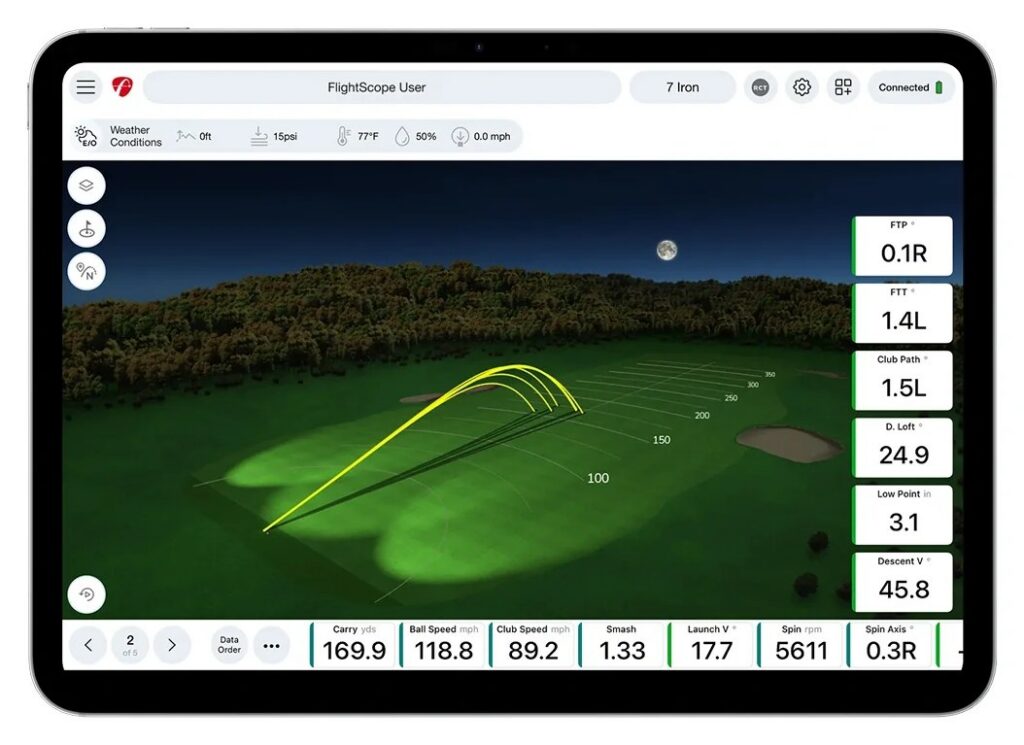
GSV leaned toward the broadcast camera and left golden hour on for the video. Its two requests to FlightScope: a pause of about a second after the ball lands before the view returns to the tee, and a follow-ball camera that sits farther behind the ball.
Smart Data Margins and manual margins
A data margin is a window you expect a number to fall in, such as carry with one club. When a shot lands outside it, the app marks it. Margins themselves are not new: FlightScope’s Mevo Gen2 page lists custom data margins among the app’s features. What is new is that the app can now build them for you.
- Manual: you type the window. GSV had set a carry window for the pitching wedge that starts at 120 yards, and the first shot, hit a little long, was flagged at once.
- Smart: you pick a skill level, and the app sets the ranges. The levels in the app are PGA, LPGA, scratch and handicap bands. GSV chose 0 to 5. There is a smart gapping option as well.
- Club mapping: map the clubs in your bag and the app uses those distances to build the margins. GSV’s advice is to map your clubs before relying on them.
FlightScope lists Smart Data Margins for Mevo Gen2 users with the Pro Package. GSV’s unit has it. With the base unit, expect to be without them.
Targets and Normalize
Targets. A target can be set per club during a session. GSV typed 125 yards for the pitching wedge, and the next shot finished inside the target range. The top view overlay shows the spread of shots from above. FlightScope says the target’s size and offset can be changed too, and that randomizing it is meant to simulate unpredictable on-course shots.
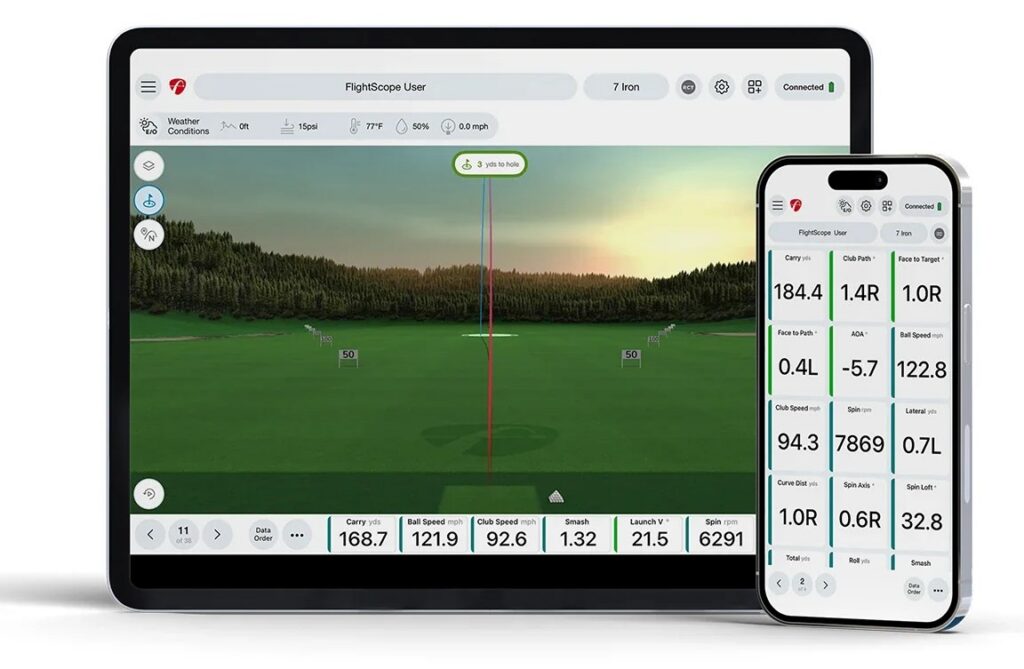
Normalize. FS Golf can apply weather and altitude to a shot. GSV’s bay sits at 800 to 850 ft of elevation, and temperature, humidity and wind can all be entered. FlightScope describes Normalize as removing the effect of wind from live or past sessions. GSV’s reading: on a windy day at the range, it shows what a club carries in still air. It was not pressed in the video.
Video: gallery, comparison and FS Multicam
The app’s video area now has three parts: video comparison, a gallery and a video mode. FlightScope says the gallery picks out highlights by itself, for maximum carry, ball speed, club speed and best smash factor, and that two swings can be played side by side in sync with markup tools.
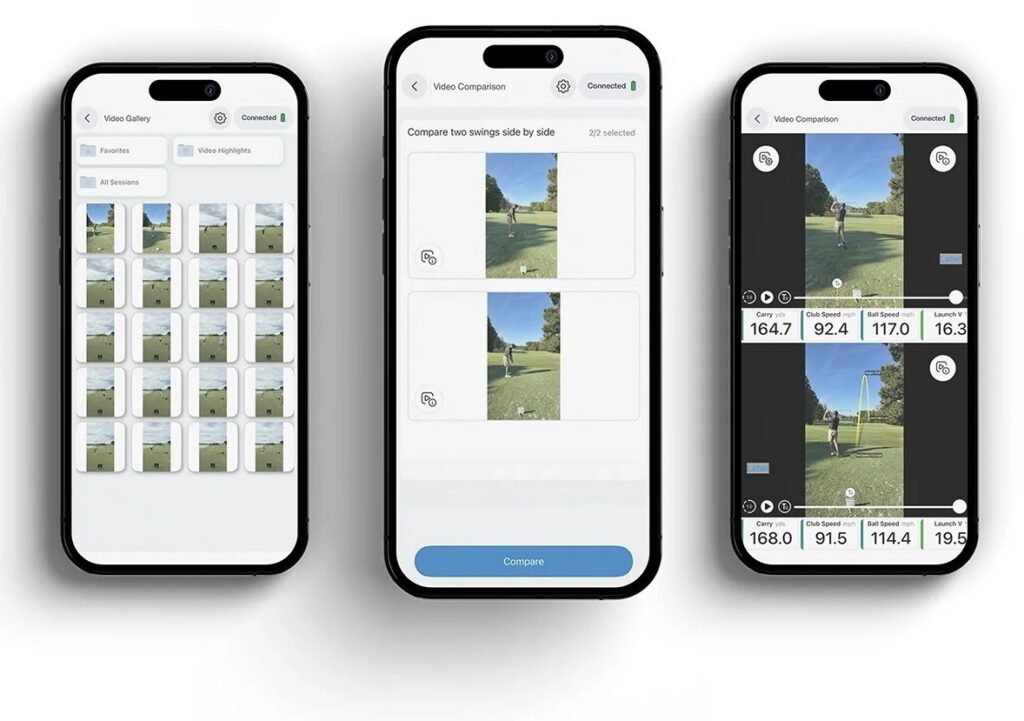
GSV could not show these working. A camera that was already connected to the PC was listed in the app but recorded nothing. GSV’s guess is that it is not a supported camera. FS Multicam, FlightScope’s phone camera app for iOS and Android, paired in seconds on an iPhone by scanning the QR code in FS Golf, but no video was attached to the shot that followed.
One limit, as GSV understands it: the Mevo Gen 2’s own camera is not available for swing video while advanced Fusion is using it to track the club. Fusion was on for the video. Near the end GSV expected the unit’s own camera to be recording as well, and no video from it was saved either.
GSV’s request for FS Multicam is control over the iPhone’s camera from inside the app: the wide-angle lens, frame rate, exposure and shutter speed.
The indoor setup in the video
| FlightScope’s figure | GSV’s bay in the video | |
|---|---|---|
| Unit to tee | 7 to 9 ft in its questions and answers, 8 ft in its setup requirements | 7 ft |
| Ball flight | 8 ft at least | Just over 10 ft |
| Tilt | Shown in the app during setup | 11.4 degrees at first, 11.8 after a nudge. GSV aims for 11.5 to 12 |
| Ball | Aluminum stickers or Titleist RCT balls for accurate spin | Titleist RCT |
FlightScope’s figures are from its Mevo Gen2 page, read on October 7, 2026. The setup screen in the app recommended 8 ft and 8 ft. Radar needs room behind the ball as well as in front of it, so check your room before you buy: the free GSV Sim Builder lays out a Mevo Gen 2 in your room in 3D and checks the distances.
Mevo Gen 2 price, what comes with it and the GSV code
The Mevo Gen 2 is $1,299 at FlightScope, as of October 7, 2026. FlightScope lists these with it at no extra cost:
- The FS Golf practice app for iOS, Android and PC
- The FS Skills challenges app for iOS and Android
- An E6 Connect bundle of eight courses, including Kiawah Ocean Course and Torrey Pines South
FlightScope says the unit also works with E6 Connect, Awesome Golf and GSPro, and advertises “$0 recurring fees”. In the video GSV adds that connecting to them costs no subscription. GSPro and Awesome Golf are bought from their own makers, as are E6 Connect courses beyond the included bundle.
The GSV code for FlightScope is GSVMEVO, and it takes 5% off at checkout. GSV checked it on FlightScope’s site on October 7, 2026: the $1,299 Mevo Gen 2 came to $1,234.05, which is $64.95 off, and 5% came off the Pro Package and Face Impact Location as well.
5% off at FlightScope
FlightScope Mevo Gen2, $1,299 becomes $1,234.05. Also 5% off the Pro Package and Face Impact Location.
Buying through GSV's links and codes helps support the channel: GSV earns a small commission at no extra cost to you, and you still get every saving available. Code last checked October 7, 2026.
See the Mevo Gen 2 at FlightScope
This is an affiliate link and GSVMEVO is an affiliate code. GSV earns a commission when they are used, at no extra cost to you. More on the code is on the Mevo Gen 2 discount code page.
How to get the update
FlightScope’s Firmware and Apps page lists these, all dated October 6, 2026:
- iPhone and iPad: FS Golf 10.0.0, from the App Store. It needs iOS 18 or iPadOS 18, or later.
- Android: FS Golf 9.0.0.
- Windows PC: FS Golf PC 26.0.0. This is the one in the video.
- The unit: the same page lists firmware DSP 1.11 for the Mevo Gen2, DSP 0.39 for the Mevo+ and DSP 1.35 for the X3C, and says to update to the latest firmware in the FS Golf app. Athlon Sports, reporting on the release, says both the app and the firmware have to be current.
FS Golf app update questions
What is new in the FS Golf app update?
FlightScope’s October 6, 2026 update adds a redesigned home screen with a light mode, in-session targets, a trajectory view with custom sky, trees and hitting surface, Smart Data Margins, a video gallery with automatic highlights, side-by-side video comparison, a Normalize option that removes the effect of wind, and saved defaults for a faster session start.
Is the FS Golf app update free?
Yes. FlightScope announced it as a free update, and the Mevo Gen 2 has no subscription. Smart Data Margins are the exception: FlightScope lists them for X3, X3C and Mevo Gen2 users with the Pro Package, which is a paid one-time add-on.
Which FlightScope launch monitors get the update?
FlightScope’s announcement names the X3, the X3C and the Mevo Gen2 for Smart Data Margins, and names no other unit. Its Firmware and Apps page lists the new FS Golf versions for the X3C, the Mevo+ and the Mevo Gen2, with the original Mevo on the phone app as well. GSV tested the update on a Mevo Gen 2.
Do Smart Data Margins need the Pro Package on the Mevo Gen 2?
Yes, according to FlightScope, which lists Smart Data Margins for Mevo Gen2 users with the Pro Package. Manual data margins, where you type the range yourself, were already part of the app.
What does Normalize do in FS Golf?
Normalize takes the wind out of the numbers. FlightScope describes it as removing the effect of wind from a live or past session, so a carry distance hit on a windy day at the range can be read as it would be in still air.
Does the FS Golf app work on a PC?
Yes. FlightScope lists FS Golf for iOS, Android and PC, and the Windows version of this update is 26.0.0. GSV tested the update on a PC.
Do I need an RCT ball with the Mevo Gen 2 indoors?
FlightScope says aluminum stickers or Titleist RCT balls are required for accurate spin measurements. GSV used a Titleist RCT ball in the video. FlightScope includes 100 aluminum stickers with the unit.
Is there a FlightScope Mevo Gen 2 discount code?
Yes. The GSV code for FlightScope is GSVMEVO, and it takes 5% off at checkout: the $1,299 Mevo Gen 2 comes to $1,234.05. It also takes 5% off the Pro Package and Face Impact Location. It is an affiliate code, so GSV earns a commission when it is used, at no extra cost to you.
More on the Mevo Gen 2 from GSV
- FlightScope Mevo Gen 2 review
- Mevo Gen 2 Pro Package: what it adds
- Mevo Gen 2 vs Mevo+
- Mevo Gen 2 discount code
- The November 2025 Mevo Gen 2 update, tested
- Best golf simulator software 2026
- GSV Sim Builder: check your room in 3D
FlightScope’s list of features and its statements are from its announcement of October 6, 2026, the App Store notes for FS Golf 10.0.0, and its Mevo Gen2, Pro Package and Face Impact Location, and Firmware and Apps pages, read on October 7, 2026. One line is from Athlon Sports’ report of October 6, 2026, and says so. Everything described as GSV’s own comes from the video at the top of this page. The three pictures of the app are FlightScope’s.
Full video transcript
FlightScope has just announced a huge update for their FS Golf app. Now, this is an application that works on both PC, which we're using today, but also works on iPhone, iPad, and those mobile devices. That way, you can take your Mevo Gen 2 like we're using today, and go out to the range. Or maybe you just have a basic setup inside of your home or garage, whatever it may be. So, these updates are something that kind of have been anticipated by users.
You know, there hasn't been a lot of updates lately to the FS Golf app, but let me explain something that I hear from a lot of users and the reason that they are choosing a Mevo Gen 2, for instance. I mean, the starting price is only $1,299, and that's before using the Golf Simulator Videos discount code. I'll put the link and the discount code down in the description and pinned to the top of the comments. So, if you're shopping or researching and want to check that out, you can use that discount code to get the absolute best price. It helps support the channel, too, which I appreciate.
But it's a device that comes with no necessary subscription. So the subscription I'm talking about is for instance software. So they include this software with the unit. They also have like course packs for E6 and they have connectivity to other software like GSPro and that doesn't cost you a subscription to use those connectivity options. So, it seems like it's very important to a lot of users, especially for the user that wants to like hit indoors like we're going to do right now, but also someone who wants to take it to an outdoor range for instance, because this unit really shines outside using its radar to track the ball.
Now, inside we're going to be using an RCT ball that gives it its best spin opportunity, you know, that way the little metal strips that they have, you know, I guess embedded is the best word, under the shell of the golf ball, it can see that and it can give you the best spin reading out of the unit. Now other things to consider. The unit does have upgradeable options like the Pro package and impact location. One of the new features today does require that Pro package. That's the smart data margins I'm going to show you.
So, just pay attention to some things like that. If you just have the base unit, you might not get some features I'm going to show to you today. We'll show you, for instance, face impact location. If it's not important to you, I wouldn't worry about it because the unit comes with a lot of data just right at that $1,299 starting price. So, let's go ahead and go over to the software first and just talk about a couple things.
The first thing you're going to notice is a redesigned interface. They have a new light mode. So, the light mode is going to give you a better contrast if you're out at the range. So, on the PC mode, we're obviously not going to be, you know, demonstrating that out in the sun or anything. Maybe we'll do that later on, but it's going to give you a new home screen layout, customizable trajectory views, and all new light mode like I mentioned.
You know, that way if you're out in the sun, and then you can save your default starting club as well, which honestly, that's something that I've wanted for a while. I'm always like going from the lob club that it selects. So, that's something that I'm going to do personally. Now let's just go ahead and dive right into practice first. So, this is going to be one that you're going to notice some differences.
So, when we go to full swing, you're going to go through your normal setup like you normally would. Now, recommends 8 ft and 8 ft. I'm actually seven and just over 10, which seems to work pretty well for me. You can see my tilts 11.4. Not bad.
I try to keep it like 11 and 1 half to 12 or so. And make sure your roll is is kind of decent. And it's really easy to adjust that. For instance, let's just do it right now. So, that says 7.
Now, if I just kind of move that just a little bit like this. See how it goes down to like 6 pretty easily. We'll just press it down just a little bit more because I just set the unit down is all I did. And see, I'm look at that. I'm at like 0.4 now and 11.8.
And all I did was basically just touch the unit just a little bit. So, it's easy to adjust that if you need to. But you can see I'm 7 ft distance to the ball. I am going to I don't need to test my lighting. We should be pretty good today.
I don't have the optimal lighting that I usually use if I'm going to use face impact and stuff, but we should be good. You can see here the target alignment. We should be all set. That's almost dead center in the middle of my mat. We have a little bit of playroom there.
We do want to make sure that we're going to use a pitching wedge today. I hit a couple shots with that before we got started here. And we're going to use an RCT ball. And you can see data margins. Now, see this little exclamation point that's right there?
Well, that's because this morning, right before I recorded this video, I actually went in and did some manual data margins for mine. So, I could rename that and delete that and start over or I could add new data margins. Now, here's what's cool. You can use smart data margins or manual data margins. Now, you can map your bag and it will use the mapping to create the data margins.
And you can base a skill level off of like PGA, LPGA, scratch, or handicaps. Like, let's say my handicap usually hovers around a five or a six or so. We'll do zero to five. And I could use smart gapping if I wanted to. Or I could add club mapping.
So, you could map your clubs to generate those margins. Now, I put in a window already on my pitching wedge, so we should be good to go. So, we'll go ahead and hit start sessions. But, I want to make sure you guys understand if you should map your clubs. You really should.
And then, out of the gate, let's just change the layout to like full width. Now, I think something that's going to stand out to you guys right away is the ability to change the backgrounds. So, let's go ahead and just set some preferences really quick and show you everything you have. So, you obviously have a down the line angle. You have a perspective that's available.
And when you change the perspective, you can see you have a top view overlay if you want. You have groupings that are available or not. You can show all shots there. You know, you can change everything for the perspective view, but most people I think use down the line. You know, as far as camera height goes, you can change that to be a little more low, which I kind of like kind of behind the golfer.
You can change the offset if you want to. So, you could move that depending on if you're in an offset environment. Top view overlay, which I actually do like. I think that's pretty cool. We'll actually leave that on right now.
And groupings as far as like club data or all clubs. Okay. One shot or all shots. We'll go ahead and select all shots. Why not?
And then you have static, follow the ball, or broadcast. I almost want to hit one at every every single setting just so you guys can see it. I have a feeling I kind of like broadcast the most, but I also want them to adjust something. So, I might share some feedback with them. You let me know what you think in the comments, though.
And then trajectory can be default, comet, or gradient. And maybe we'll go through those really quick, too. But you have ability to go clear, overcast, golden hour, or even a night mode, which is pretty cool. Now, if you click dynamic, you're not going to be able to change any of those. Why?
Because that's actually going to the time of day that you're at. So, that location you're at. But I tell you what, I mean, the night mode's really cool. Golden hour is really cool. I'll leave golden hour on just because it kind of gives you guys a good look at what's out there.
But you can even like set your different views of trees. So, like there's pine trees, there's maple trees, and then there's general. I guess we'll just leave general on for now. And then even where the ball's located, you'll see it's just on grass. You could actually set up a mat if you wanted to or have like a multiple view.
So, I kind of like a clean environment, so I'm just going to leave it you know, as grass. Set up a golf basket if you want. So, they're kind of making this a little more interactive. I like where they're going here. You can turn off the little cart path over on the left if you want to.
I'm assuming the ball bounces off of that if it hits it. I have not hit one over there yet. But this is a nice view. I have my data at the bottom. And then, and I'll tell you what, I'll probably drag I think I can rearrange these a little bit.
Have not done this in a little while. Data order because what I want to do is make sure that you guys are seeing like I I don't care about like carry or I'm sorry, carry we do want down here. Let's see here. Come on. Can I move it or not?
Do I have to go up? Why is this not reordering? This might be something I have to work on with them because you should be able to reorder the data. And it's not. It says use drag and drop to set block order.
And I've done this before, but for some reason it is not rearranging. So, I think we might have found a bug. The only reason is because I was going to not hide the data with you guys. But all we have to do is just kind of move that up there. I'm going to have to ask them about that.
I haven't tried to rearrange the data honestly because I just usually leave it at standards. So, something we might need to bring up to them. But at this point, we're good to go. Now, this is new. See where it says normalize?
You don't have to use the weather conditions. Like I'm at about 800, 850 elevation that you can see the set temperature and humidity. You can add wind, but you could also just normalize your shot. So, if you're outside and it's a crazy windy day, but you're trying to practice and just know what your carry distances are, well, it will normalize it for you. And I think that's a really big deal.
Really big deal. So, let's just hit shots at this for now. And then remember, I need to remember that we're going to change it every time for each you know, view. So, let's go ahead and hit a shot here. And that is a little long.
I tugged that a little bit. I got excited. You can see it's outside of my 120 to 125. Actually, no, I did 120 to 130, I think, as far as my range goes. I might have done 120 to 125.
Because it's usually 5 to 10 yard gap. And it instantly lets me know, hey, you're outside of what you'd expect on that club. And I have something cool to show you, too, that we'll turn on. So, there's the first shot. Let's go ahead and make a change.
Now, what I would like to do first, because I'm not going to hit a million shots for you guys, and I'll try to not make this a marathon video, but you can set targets. So, practice smarter with in session targets. So, set it per club, you can have it randomize it, you can do a top view overlay. Really cool stuff. And so, I'm just going to type in a number of 125 because that's basically my you know, solid, you know, number for a pitching wedge.
I love how it can randomize, too. I think that's really cool. So, I was, you know, within a target range on that shot. And let's bring this up really quick and let's go to follow ball. Now, this is one that I'm not really a fan of, and you guys let me know what you think.
I think that this like zooms into the ball too much. I would like to see them kind of have a little delay and then be further behind the ball. You guys let me know what you think cuz I like the follow ball feature, but it's just too close to the golf ball. So, I purposely hit that a little right and it should be a little softer. Yeah, 121.
So, we're getting a little dispersion out there was the goal. Now, the follow the ball, you know, whether you're using follow the ball, you know, behind or the next one I'm going to show you, broadcast, it goes back to the tee really fast. That is something I think I'm going to bring up to them that I would like to see is I would like to see and we'll switch this to comet this time, too. Oh, yeah. Because actually changes when you hit it.
So, I guess it the default's pretty good. Let's just see what comet's like. You can see what happens, though. Is it only kind of like is the end of it versus like you can see the gradient you know is a little bit you know kind of fades out and then the default is just kind of the default line but let's hit it with comet just for fun and see what it looks like and I'll turn it back on for you guys too but but watch when the ball lands. So now we're on broadcast and I'll try to hit this one a little straighter.
And the goal here is is to basically when the ball lands, see what happened for a second. And I think that it goes off of it too fast. Had to lost my train of thought there for a second. Oh, that was a really bad shot. Lost my train of thought and hit a bad shot.
It was a little thin. Little thin. Is it going to work? Thin to win? But see, see how that jumped out so quick.
I couldn't even really tell what happened. So, I think that's some good feedback for him that we need to share. You guys let me know what you think. What we'll do is is we'll go back to default. We'll go back.
We'll leave it on broadcast. Because I kind of like broadcast. I mean, I don't mind static either. Do we want to change anything else? Let's hit let's hit one in night mode just to see what it looks like and then I'll show you guys some other things because what you can do now is is you could bring up over here all kinds of stuff.
So, like I told you it was thin. It was a bad shot. I can verify that just by changing my data and looking at impact location. So, I just kind of jumped at it, you know, just a little bit thick. Now, if I wanted to I think radar camera is going to be off because I am using the camera to actually do the full enhancement that you know, the way that it actually tracks the club and uses it towards all of its data.
And you can't use the camera if you're going to do that. So that fusion technology is what I was looking for. Now once I add a camera like I did, I think I can go into gallery now because it's not selected yet. So let's hit one like this. I'm going to show you guys you know, some camera options that they have, too.
Because what they're doing is they're auto detecting your best shots. So if you take like 15 and then you can compare like the worst and the best or the two best little better other than a little heavy. And I believe that's going to record this time. Let me see if I actually have my camera working properly. So, this is not like a auto replay loop.
The question is is it playing my camera? Yeah, I don't think it's recording my CC cam. And I kind of wanted to show you guys a camera view. So, that's a bummer. I apologize.
I thought that it was going to work with this camera and it's just one that I had connected and I'm probably going to have to do a separate video. If I go into camera, you can see it's set. It's there. Set as primary. I would assume that it maybe not compatible.
That's probably the issue. And I just kind of assumed it was going to be compatible. So, I apologize for that. So maybe we'll just show you a couple other things over here. Whether you want to look at your club analysis, whether you want to look at your D plane, whether you want to look at the club analysis in 3D, and they'll actually show the movement as well, which I think is cool.
You can look at face impact, obviously. Little better that time. Little higher on the face, not as thin. Speed acceleration profiles. I think that's a pretty cool one if you understand it, you're a coach, you really know what you're doing.
Top view. So there's my dispersion that I'm creating right now with a top view and you could have that on the you know side of your main view like I showed you as well. There's that side 2D view. There is a radar camera like I showed you available. But I have advanced fusion on.
You'd have to turn that off. And then I think that's about everything. You can import video as well. Now, you can use Multicam, which I've shown before in the channel. Multicam is actually really cool.
So, Multicam, is a very easy to use app on your iPhone. I'm going to hit one more shot for you guys. And you basically connect it through the QR code. You open up the Multicam app, connect it through a QR code on here, and seamlessly just set up an iPhone and use recording indoors, outdoors, whatever it may be. The only thing I'd like to see on Multicam is now that the iPhone has so many different settings, wide angle and fps settings and adjust adjustment for exposure and everything like you can even lock your shutter speed now on the latest iPhone Pro 18.
So, I think that they need to update the FS Multicam app. That way you can have a really good iPhone video full adjustability inside that Multicam app. I'm really going to, you know, push that on them because I think it'd be huge. All right, so let's hit one more shot for you guys. Little toey, but not too bad.
So, at least we got a kind of rounded about, you know, shot. See how it comes back though? Like 125 on the button. Like that is my my pitching wedge, you know. I It can doesn't get any more standard than that.
If I would have hit it a little bit better on the face, I would have got more spin out of it. Not the most ideal spin out of it. And now I have it on loop, so it's looping the shot. Because I set the loop to the camera. I thought it was going to loop the camera.
So that's not bad if you like that. I guess it just depends on like how fast you want it to loop. Do you want to slow it down? Because you can just simply go down here and change the speed. So if you wanted it to slow down to show your last shot, that's an option.
I'd like it just to pause for a second after the ball lands. I mean, not not long. I want to hit another shot. I don't want it to delay. But I definitely would like to just kind of have a second to do that.
But yeah, you could do it in slow motion. I don't mind that at all. And of course, this is where I got that loop from. So, you can idle it at the end, which is I don't think anybody really wanted to stay on that, or you could just return. But yeah, I'd like to have the return you know, stay for a second.
So, and but there's different options. Depends on what you what you'd like. Now, this is pretty cool that a lot of people don't quite understand that if you're in like the environment that I'm in, I could bring this over to my projector screen and then I could have data or whatever I want on my other monitor or third monitor. So, the multi-screen options that are available inside of here, I think are are really useful depending on what you're using. I mean, it it it could really make a powerful environment.
So just know that they're available inside of here. All right. So if I just hit X, I think it'll close out on that. And then I can just go back. Oh, it's because I don't have my my view selected.
And then I can just go back just like that. So it's pretty simple. Now let's just really quick go out because I do want to after we finish this session, let's just go ahead and leave. You're going to see when we go into video that there's video comparison, gallery, and video mode. So there are different abilities inside of here.
So, this this video comparison is what I was talking about. If I had videos inside of here, I could show them to you guys. We could technically take a video really quick with you know, the unit itself. I don't because I don't have any videos inside of here. I was hoping that the the swing camera you know, that I have connected would work, but apparently it does not.
We can give it one more shot if we want to really quick, not to bore everybody out. This is what I was talking about, the default. If I set this to be default, it would always go on pitching wedge or whatever you want. And then the data margins you can, you know, have defaulted on if just like I did if you want. So, I mean, yeah, let's let's try really quick.
So, if we turn fusion mode off, that's going to record, but let's just let's just make sure that my camera isn't going to record, but I I think it's just not compatible. It's just a random camera that I had connected from one of the other platforms. Yeah, I don't think that camera, unless I'm just missing a setting and I was moving too fast for video recording. But my radar camera should be working unless the primary when I set up the primary camera, it's throwing everything off now. Because I had this as a primary and I could set that to secondary or even just turn it off would probably be the smart thing to do.
And I could even show you guys really quick. I have not done this in a while. I could open up an FS Multicam on my phone really quick and just see how hard this is to set up on the fly. I like doing things like this. I mean, this is becoming a little bit of a marathon, don't get me wrong.
Multicam from iPhone. Camera not available. Why is it not available? One, two, three. Resolution.
Is it loading there? There it is. There's me, my Multicam. So, now essentially we can have this be my primary camera. Let's go to I think I need to go back to camera settings and under here set order preview resolution.
Where did I have I hate doing things on the fly. I really shouldn't do this, but radar camera, primary camera, multi camera. There we go. Let's just do this. Show you guys how powerful this is.
I mean, I am on the fly put throwing this on a random tripod right now that I have over here. At least I have a tripod over here. But this kind of is like real life. I mean, it's not going to be perfect. Like, I don't even have it in the right spot.
But at least give you guys an idea. Kind of straighten that out just a little bit. There we go. And I'll hit a shot and I think this will work now. So, I talked about it.
I mean, the least that I could do is is try to show it. I mean, how cool is that? We just did that in a couple seconds. But I want all the options for the camera, you know? I want to be able to use wide angle and and mess with my shutter speed.
That way I have bright lights and can freeze my club. So, will the trigger work now that I have all of that? I'm doing something wrong, I think, because for some reason it's not recording the video. So, I I obviously I think it's a setup issue because I've used this before and I apologize. I mean, it was super easy to show you guys.
Let's just make sure. Yeah, that's this loop. This is the one of one shot. Select the shot. That's the shot we were on, but there's no video available.
So, I I really apologize, guys. I mean, it it should have should be recording video, and for whatever reason, I'm I'm either doing something wrong or we found a bug, one or the other. So, at least I was able to show you how easy it is to set up the multi camera. I mean, all I did was open the Multicam app, scanned that QR code, and I'm ready to go. But I'd really like to see what I'm doing wrong.
I don't live inside here, you know, I don't live inside of any software. So, sometimes, you know, it just is one of those things where I have to maybe figure out if I'm, you know, clicking something wrong, moving too fast. So, this would be a good learning opportunity. And if we found a bug, we'll get the bug nipped right away. That's for sure.
So, I really appreciate you guys watching as always. I mean, please comment below thoughts, questions, anything along those lines. And I'll make sure I comment below what I find out about why my camera's not recording because I want you guys to know and I'm sure I've used it a bunch so I'm sure there's an answer to it and I'll make sure I put the answer down in the comments. So stay tuned for that. I appreciate you guys watching.
As always stay tuned because there'll be a lot more coming soon.
Build the rest of your sim
- Enclosure and screen$250 off at Shop Indoor GolfShop
- Carl's Place enclosure5% off, code sent by emailShopGet the code
- Hitting mat$20 off at Shop Indoor Golf. GSV5OFF is more on a first order over $400Shop
- Projector5% off at Shop Indoor Golf. First-time buyersShop
- Simulator computerSurfThing: $100 off applied automatically, no codeShop
- TouchscreenGSV code for TouchscreenGuruShop
- Complete package$250 off at Shop Indoor Golf. GSV5OFF is more on a first order over $5,000Shop
GSV earns a small commission on these links, at no extra cost to you. Shop Indoor Golf takes one code per order.