
Infinite Tees, the Unreal Engine golf simulator software from IT Golf, has a major update: new ball physics with green firmness settings from soft to tour firm, an all-new interface built for touchscreens, a dual screen mode, a HUD configurator, team game modes, new practice ranges with analytics, a drone mode for flyovers, and new sounds and effects. IT Golf calls it its biggest update since August, and releases it to everyone on Friday, October 16, 2026. IT Golf gave GSV early access ahead of the public release, and Jay Lasco, host of Golf Simulator Videos, went through the menus, then hit wedges, approach shots, chips and bunker shots on soft, receptive and firm greens, with the graphics maxed out at Epic on an RTX 5090. The video is at the top of this page. Below is what changed, what GSV found, and what a 4K golf simulator needs to run it.
- New physicsBuilt from published golf physics research, in place of Unreal Engine's own
- Green firmnessSettings from soft to tour firm
- 2 screensDual screen mode: controls on a touchscreen, the course on the projector
- 4KGraphics in both plans, by IT Golf
- Oct 16Out to everyone, by IT Golf
- $19.99A month or $199 a year, after a 10-day free trial
Start the free trial at itgolf.io Plan a 4K room in the GSV Sim Builder
Gear for a 4K golf simulator
- SurfThing simulator PCsSurfThing: $100 off applied automatically, no code.
- TouchscreenGuru touchscreensGSV code for TouchscreenGuru: GSV5.
- BenQ LK830ST5% off at Shop Indoor Golf with code GSV5OFF.First-time buyers only, one use. Not valid on a standalone Trackman, the Square Golf launch monitor or the ProTee VX.
Buying through GSV's links and codes helps support the channel: GSV earns a small commission at no extra cost to you, and you still get every saving available.
What is new in the Infinite Tees update
| Area | What is new |
|---|---|
| Physics | A new ball physics model and green firmness settings from soft to tour firm |
| Interface | An all-new menu design made for touchscreens, a HUD configurator and your own hotkeys |
| Screens | Dual screen mode: data and controls on one screen, the course on the other |
| Game modes | Par 3 on any course, approach challenges, closest to the pin, and team scoring: best ball, aggregate, average, worst ball and scramble |
| Players | Add and move players, shoot out of order, concede and pick up, profiles with team colors and a boost for junior golfers |
| Online play | Revised: a lobby with a password, the format, the scoring, the sides and the holes |
| Practice | A flat range and a practice facility of island greens, flags to swap, reset each shot or hole out |
| Analytics | Club gapping, dispersion and shot history for each player, logging on or off, and match history |
| Conditions | Time of day, cloud cover, fog and wind, set right from the range or the course |
| Drone mode | Program a flyover: start and end points, the time of day, the field of view and the length |
| Sound and effects | Divots, water splashes, sand, ball marks, and new sounds for the strike, the cup and the water |
The new physics and green firmness settings
The update sets aside the physics built into Unreal Engine for a model IT Golf based on published research into golf ball physics. The new model goes with new green settings: each course can be played on greens from soft and receptive up to firm and tour firm, chosen under Environment before a round, in an online match, or from the range and the course as you play.
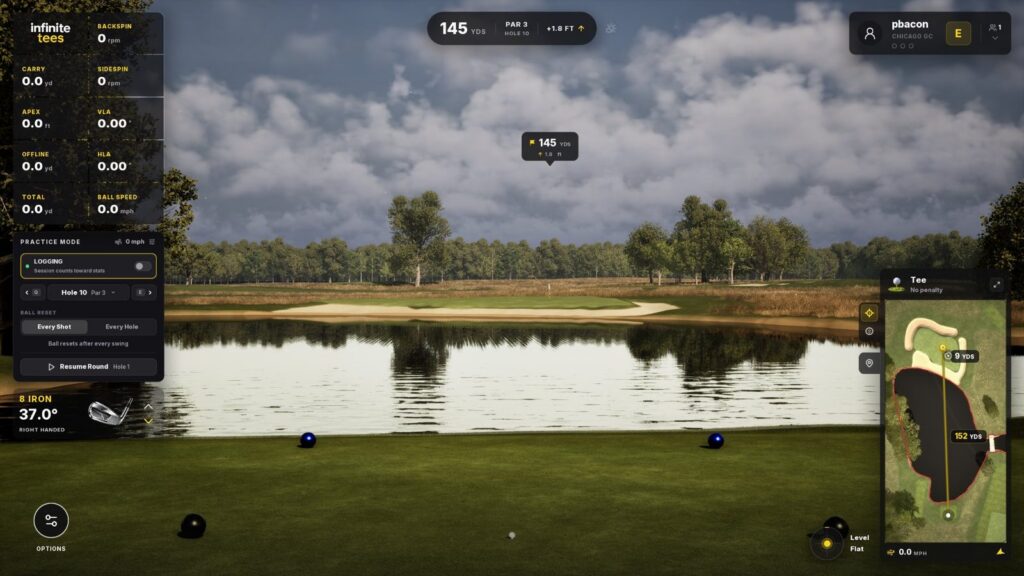
The lie matters too. The mini map panel shows the lie, the wind and the slope under the ball, and before a drop the HUD shows what the lie takes off the shot: from a flat bunker, 5% of the speed and 25% of the spin, and from the rough on one chip, 5% of the speed and 15% of the spin, with the launch angle changed by +1.
What GSV found testing the physics
GSV hit every shot in the video with real swings, on the flat range, the practice facility and at Chicago, a freshly redone course IT Golf wanted shown, changing the green setting between shots. Spin figures are the launch monitor's.
Wedges at the practice facility
- Short chips, about 39 yards, on receptive. The ball followed the slope: a cut at 7,100 rpm ran left with the ridge, and one at 7,400 rpm trickled down the slope from the hill on the right. This green has plenty of undulation.
- Full wedges, about 75 yards, on receptive. Around 9,200 to 10,000 rpm the ball bounced, stopped and came back a little.
- The same wedges on soft. At 9,700 and 10,300 rpm the ball spun back further than on receptive.
- On a firmer setting. At 9,500 rpm the ball bounced forward and then stopped. GSV saw a difference between the settings on full wedges, but not a large one.
Approach shots at Chicago
- Draws with an 8 iron, about 150 yards. On receptive, a 6,400 rpm draw bounced left. On firm, a 7,500 rpm draw rolled out a little more. On soft, a similar draw rolled out a little less, though not by much.
- Cuts. A cut on soft stopped without rolling out, and cuts on firm with a little less spin, about 7,600 rpm, barely rolled out either.
- A sweeping draw on firm landed, kicked left and rolled out a little, with less spin than the cuts.
The settings do change how the ball reacts, and the physics look much more like what golfers expect, but on full approach shots the gap between soft and firm was small.
Chips from the rough and bunker shots
- From the rough, 43 yards. On firm greens the chip released a long way. On receptive, a 5,900 rpm chip checked up, and a low bump and run at 3,400 rpm still stopped fairly quickly.
- On a firmer setting again. With the greens changed from receptive, a 3,600 rpm chip ran well away, and the next chip, with more spin, rolled out a long way too. Chips from the rough are where the green settings made the biggest difference.
- Bunker shots. The sand sounds and looks the part. A 4,000 rpm splash released, and a 6,500 rpm shot from 34 yards checked up. GSV would like a bigger deduction out of the sand, more on the power than the spin.
What GSV is passing to IT Golf
- Spread the green settings further apart, so firm and soft play more differently on full shots.
- A larger penalty out of bunkers, on the speed more than the spin.
- Make the targets on the flat range real greens. In GSV's testing they seemed to play like fairway rather than green, so a spinning wedge did not react the way it would on a green.
- A starting field of view worked out from the screen size and the distance from the ball, since field of view is personal and tricky to set.
- A little more sharpness when zoomed in on the ball, and trees that look a little dark in the afternoon sun.
Comments on the video go to IT Golf too, so add yours there.
Dual screen mode, made for a touchscreen
Dual screen mode, in Settings under Gameplay, puts the course on the projector and a control screen on a second display. The control screen keeps the data and settings up all the time: the shot dispersion with its circle and heat map, the front and back of the green, the aim (dragged with a finger or nudged with buttons), the full shot history and the analytics logging. It is built for a touchscreen, and it was one of the features GSV liked most in the update. The rest of the new interface is designed for touch as well.
The golf simulator touchscreen guide covers sizes, where the screen goes in the room and how to set it up with the PC, and the TouchscreenGuru Ultra-Series review covers the 4K touchscreens GSV uses. GSV's code GSV5 gives a saving at TouchscreenGuru, shown at checkout.
TouchscreenGuru Ultra-Series 4K touchscreens
- TouchscreenGuru touchscreensGSV code for TouchscreenGuru: GSV5.
The new interface, HUD configurator and hotkeys
- HUD configurator. The data tiles are grouped in categories, such as Result, where roll lives. Remove a tile and pick another in a tap, turn whole panels off, such as the shot data or the club graphic, and scale the HUD. The tiles cannot be moved around the screen.
- Hotkeys. Clear them and set your own, or go back to the defaults.
- Settings. Graphics up to Epic, a frame rate lock, the field of view, course lighting, a putting grid that comes on by itself, and screen offset and alignment.
- Profiles. Each golfer gets tee and team colors, a left or right hand, a club bag that maps to the analytics, and an optional boost for a junior golfer or anyone who needs help.
- Connector. A small connector app links the launch monitor and shows where the ball sits, handy on a third monitor.
Game modes, team scoring and online play
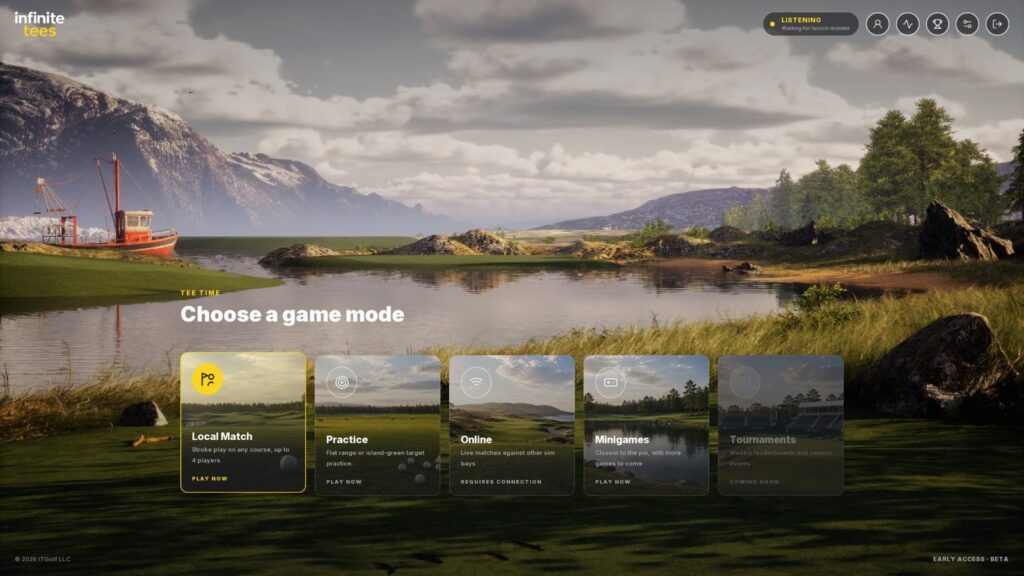
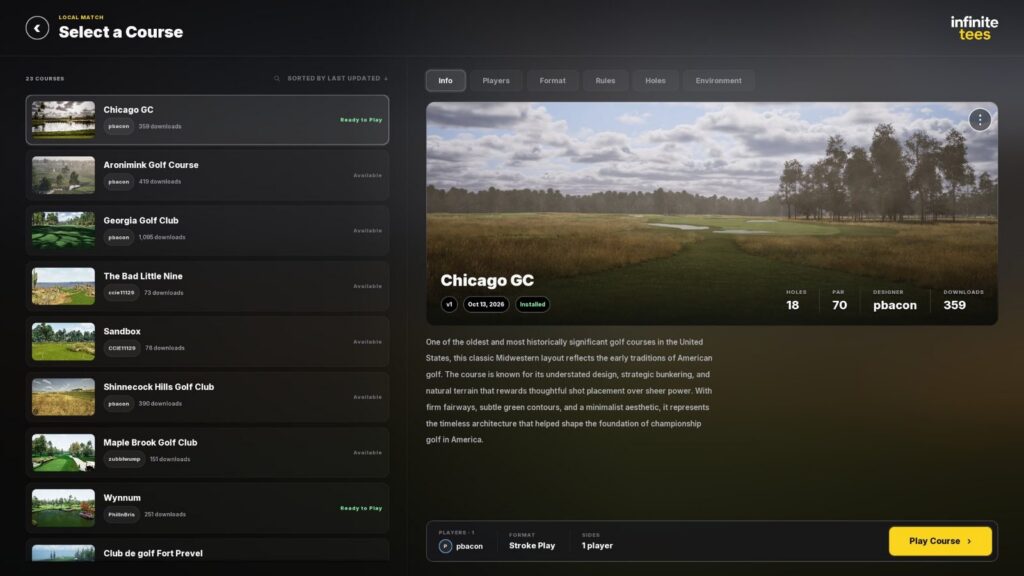
- Local match. Stroke play on any course for up to 4 players. Each course shows its holes, par, designer and downloads, with tabs for the players, format, rules, holes and environment.
- Par 3 on any course. Any course can be set up at par 3 distances, online too.
- Minigames. Approach challenges and closest to the pin, with more games to come, by IT Golf.
- Tournaments. Weekly leaderboards and season events, which the menu marks as coming soon.
- Team scoring. Best ball, aggregate, average, worst ball and scramble.
- Player management in the round. Add and move players, shoot out of order, concede and pick up, which keeps the pace up when someone steps out of the simulator.
- Online play. Live matches against other simulator bays. Open the online lobby, set up a match with a password so strangers cannot join, then choose the format, the scoring, the sides, the team games and their rules, the holes and the environment.
- Match history. Under the trophy: every mode played, the players, the standings and head to head.
Practice ranges and analytics
- Three ways to practice. The Practice Facility, island-green target holes at set distances; the Flat Range, an open range with distance markers and full shot data, with targets you drag to the distance you want; and On Course Practice, any course hole by hole with no scoring.
- Range controls. Swap flags, reset the ball after every shot or every hole, and drop the ball or reset the aim from the mini map.
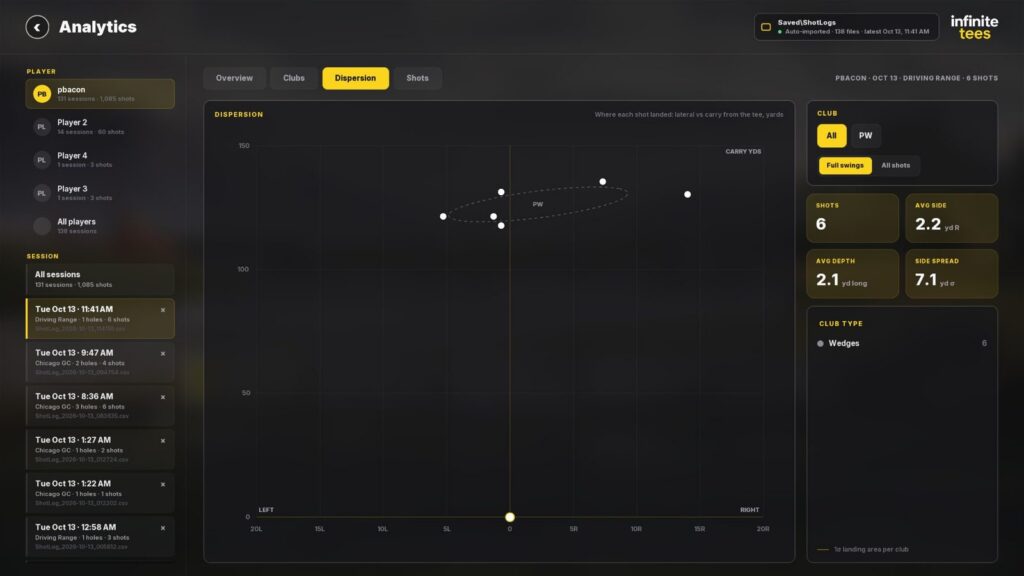
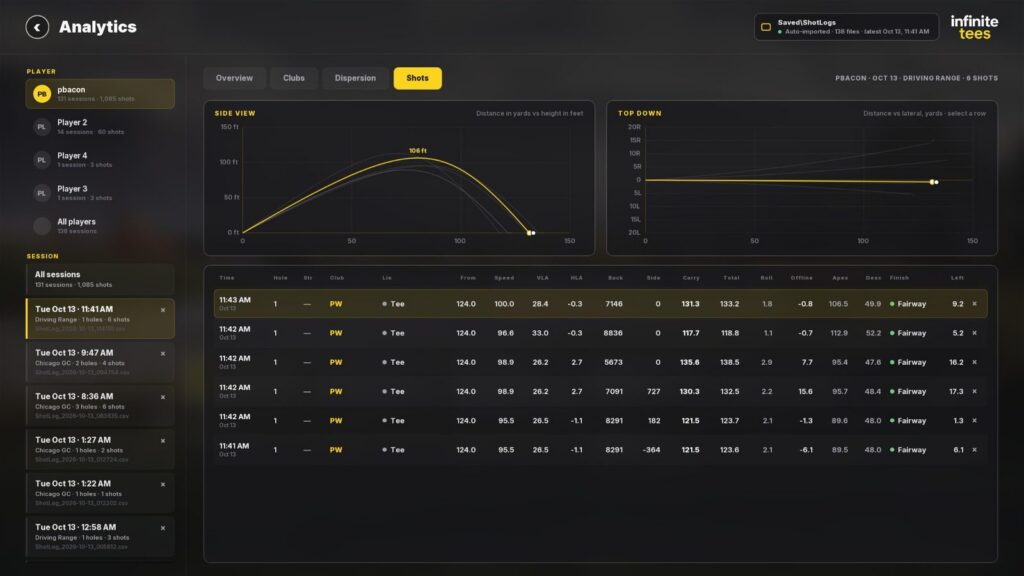
- Analytics. Overview, Clubs, Dispersion and Shots tabs for each player, by session. Dispersion plots where each shot landed with the landing area for each club, and Shots gives side and top-down views with every shot's speed, launch, spin, carry, total, roll, apex, descent and where it finished. Sessions are saved as shot logs the analytics read in by themselves.
- Logging. Turn it off for a session so the shots do not count toward that golfer's stats.
Weather, time of day and drone mode
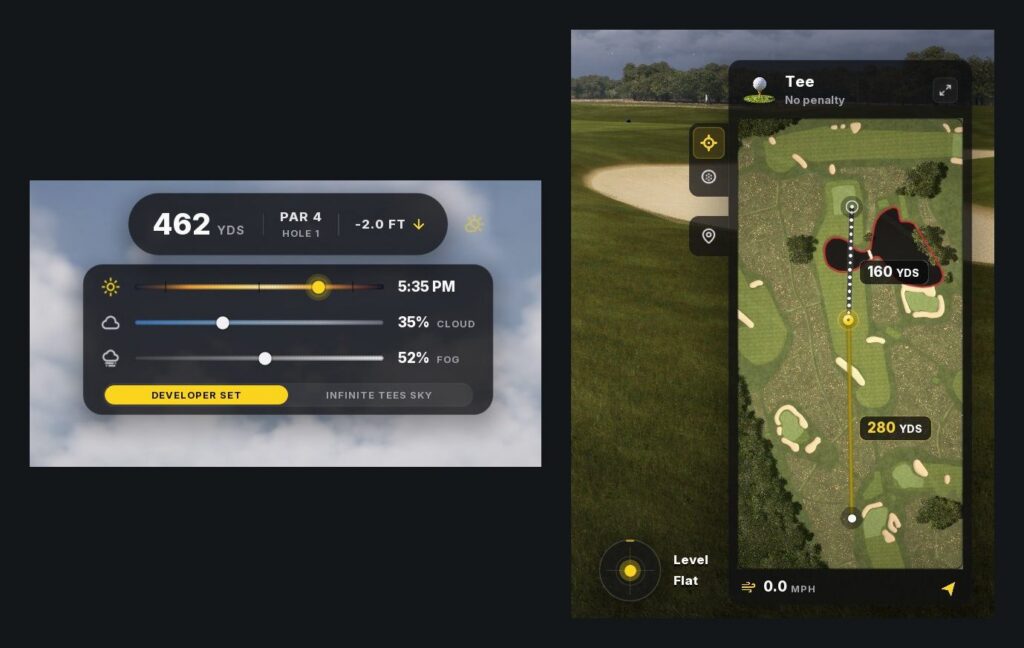
Hover over the sun and cloud beside the distance in the HUD to set the time of day and the weather: sliders for the time, the cloud and the fog, and a choice between the sky the course designer set and IT Golf's own Infinite Tees Sky. The course can be played at dawn, at a summer dusk or anywhere between.
Drone mode, under Options, programs a flyover. Set a start point and its aim, fly to an end point with the keys shown on screen, set the time of day at each end (7 am to 11 am in the video), the field of view and the length, then capture. It suits course designers and anyone making videos or streaming. There is a standard flyover button too, which GSV found a touch slow, and a landing zone view that flies to where you are aiming.
Sound and visual effects
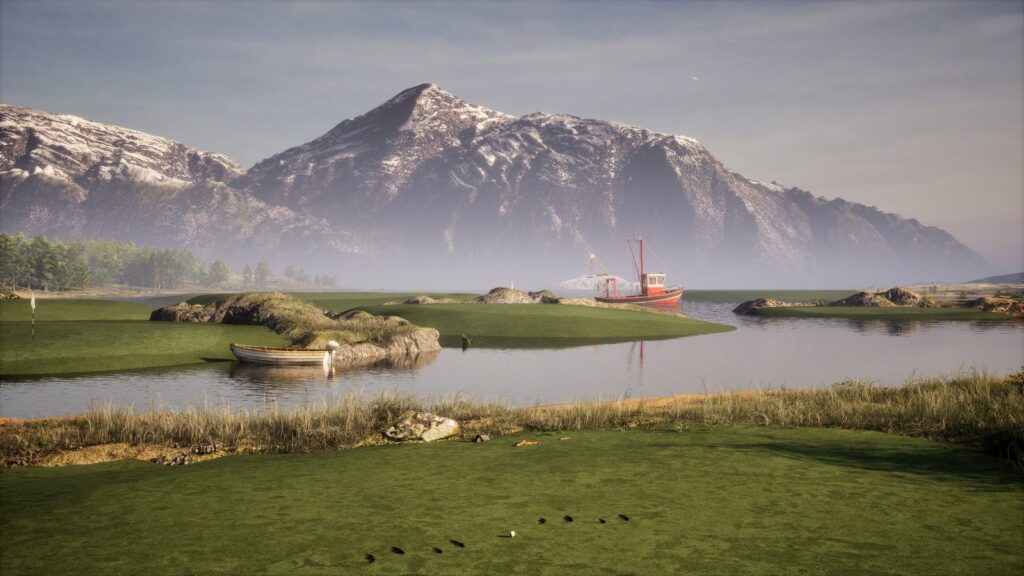
Divots, water splashes, sand, ball marks, and new sounds for the strike, the ball dropping in the cup and the water. Close to the ball the camera drops to a first-person view, and the mouse wheel zooms out at any time. The grass moves, and a boat bobs on the water by the island greens.
What a 4K golf simulator needs
IT Golf lists 4K graphics in both of its plans. A 4K picture is 3,840 x 2,160 pixels, four times as many as 1080p, and it only shows on the screen when the software, the PC and the projector all deliver it:
| Part | What 4K takes | GSV's guide |
|---|---|---|
| Software | Software that renders in 4K, such as Infinite Tees | Golf simulator software guide |
| PC | A graphics card that can draw four times the pixels every frame | Best computer for a golf simulator |
| Projector | A 4K projector with the right throw for the room | Golf simulator projectors |
| Touchscreen | A second screen for dual screen mode | Golf simulator touchscreens |
The PC
IT Golf gives one specification: an NVIDIA RTX 3070 or equivalent, 16GB of RAM, 10GB of free storage and a stable internet connection. It publishes no separate 4K tier. GSV ran the update at Epic settings on an RTX 5090, with the frame rate locked at 60 frames a second to match the projector's 60Hz: in GSV's view, running faster adds nothing on a simulator. The best computer guide sets out the 4K tiers the software makers publish, and SurfThing, GSV's PC partner, builds machines for simulators.
Golf simulator PCs from SurfThing
- SurfThing simulator PCsSurfThing: $100 off applied automatically, no code.
The projector
For a projector ahead of the golfer, GSV's tested 4K pick is the BenQ LK830ST, with a lens of about 0.5. Where it can hang over or just behind the golfer, it is the BenQ AK700ST. BenQ's new AK800ST and AK900ST are 4K too, and GSV has a first look at both. The projector guide works out the throw distance for your screen.
GSV's tested 4K projectors
- BenQ LK830ST5% off at Shop Indoor Golf with code GSV5OFF.First-time buyers only, one use. Not valid on a standalone Trackman, the Square Golf launch monitor or the ProTee VX.
- BenQ AK700ST5% off at Shop Indoor Golf with code GSV5OFF, first-time buyers.
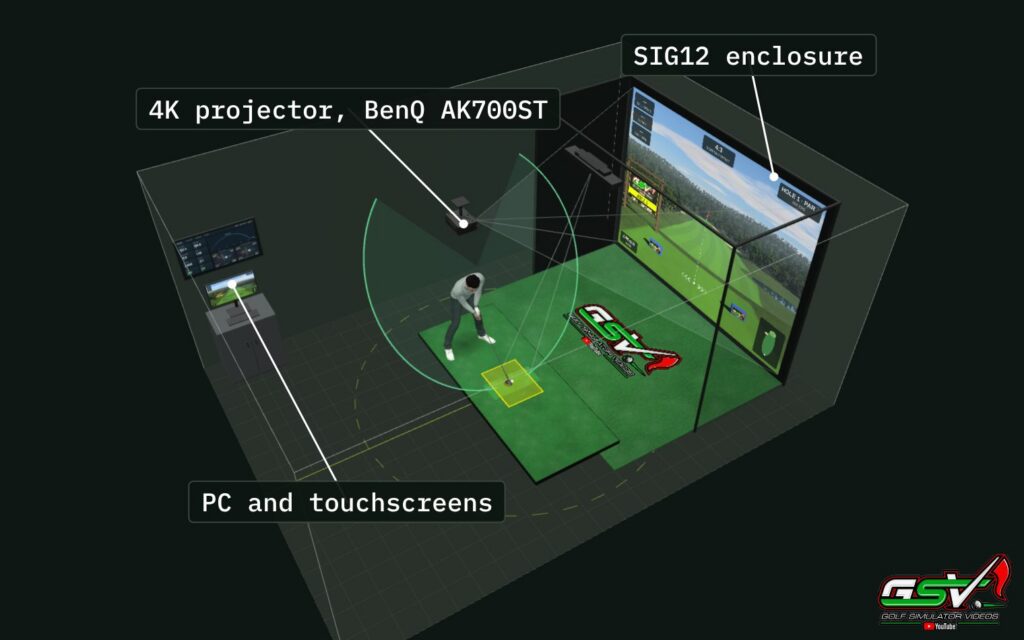
The GSV Sim Builder places the projector, the screen, the PC and the touchscreen in your room in 3D, with the fit checks, and the codes for what you pick.
Price, free trial and launch monitors
Infinite Tees is $19.99 a month or $199 a year on IT Golf's pricing page, which still calls it early access, and both plans include everything. IT Golf's home page offers a 10-day trial with no credit card. IT Golf officially supports four launch monitors: Nova by Open Launch, Spectrum Golf Technologies, VTrack and Bullseye Golf Sims. Third-party connectors built on its open API exist but are not officially supported, so try your own unit in the trial before paying. GSV has no discount code for Infinite Tees.
The Infinite Tees page has the full picture: price and license terms, the launch monitors, the PC, building courses with Superintendent, and Infinite Tees against GSPro. GSV's first look from June 2026 shows where the software started.
GSV's take on the update
This is a big revamp of the software. The interface is the standout: modern, clean and easy on a touchscreen, with far more useful information than before, and dual screen mode makes a touchscreen the control center of the simulator. The physics behave much more like what golfers expect: spin and slopes show up clearly in the ball's reaction, and the HUD shows the lie penalty before each shot, though GSV wants a bigger penalty from sand. GSV would like the green settings spread further apart and more taken off shots from the sand, and will keep testing on the channel. Infinite Tees is still early access, and IT Golf is clearly putting a lot of work into it.
Free consultation with GSV's partner builders
Planning a 4K simulator? Jay works with official partners: master builders he hand-picked, who get on a call quickly and make sure the projector, the screen, the PC and the launch monitor fit your room and your software before you buy anything. They offer package deals on the whole build, DIY packages to put together yourself, full installation, and more. The consultation is free.
Infinite Tees update questions
What is new in the Infinite Tees update?
New ball physics with green firmness settings from soft to tour firm, an all-new interface made for touchscreens, a dual screen mode, a HUD configurator, custom hotkeys, par 3 on any course and team scoring, revised online play, a flat range and a practice facility, analytics for each player, a drone mode for flyovers, and new sounds and effects.
When is the Infinite Tees update out?
IT Golf releases it to everyone on Friday, October 16, 2026, and calls it its biggest update since August. GSV tested it with early access before then.
Did Infinite Tees change its physics?
Yes. The update sets aside the physics built into Unreal Engine for a model IT Golf based on published research into golf ball physics. In GSV's testing, spin and slopes showed up clearly in how the ball reacted, and the ball behaved much more like what golfers expect.
What green settings does Infinite Tees have?
Green firmness from soft and receptive up to firm and tour firm, chosen before a round, in an online match, or from the range and the course. GSV saw the biggest differences between settings on chips from the rough, and smaller ones on full approach shots.
Does Infinite Tees work with two screens?
Yes. Dual screen mode, in Settings under Gameplay, puts the course on the projector and a control screen on a second display, with the dispersion, the aim, the shot history and the analytics logging. It is made for a touchscreen beside the hitting area.
Is Infinite Tees 4K?
Yes. IT Golf lists 4K graphics in both of its plans. GSV ran the update with the graphics maxed out at Epic on an RTX 5090.
What PC does Infinite Tees need?
IT Golf lists an NVIDIA RTX 3070 or equivalent, 16GB of RAM, 10GB of free storage and a stable internet connection. It publishes no separate 4K tier, so for 4K, more graphics card is better.
What do you need for a 4K golf simulator?
Software that renders in 4K, a PC with a graphics card strong enough to draw four times the pixels of 1080p, and a 4K projector with the right throw for the room. A touchscreen adds a control screen. GSV's tested 4K projectors are the BenQ LK830ST and the BenQ AK700ST.
How much is Infinite Tees, and is there a free trial?
$19.99 a month or $199 a year on IT Golf's pricing page, with everything in both plans. IT Golf's home page offers a 10-day trial with no credit card. GSV has no discount code for Infinite Tees.
Which launch monitors work with Infinite Tees?
IT Golf officially supports Nova by Open Launch, Spectrum Golf Technologies, VTrack and Bullseye Golf Sims. Third-party connectors built on its open API exist but are not officially supported, so try your unit in the free trial first.
Is there free help planning a 4K simulator?
Yes. Jay offers a free consultation with GSV's partner master builders, hand-picked by Jay, who get on a call quickly and make sure the projector, the screen, the PC and the launch monitor fit. They offer package deals, DIY packages, full installation and more. Use the free consultation button on this page.
More from GSV
Full video transcript
Today we're back with Infinite Tees 4K Golf Simulator software for a huge update. As you guys can see. Things are looking all new. I want to give you a quick rundown of everything. Then we're going to dive into the software. I'll show you everything hands on. We'll hit some shots because one of the new updates is a major physics overhaul. So talking about physics, what did they do? They threw away basically the Unreal Engine physics. And they actually looked at published research on golf physics and they applied those to their software. So I think that that's really cool that they're kind of diving more into physics. We're going to give you demonstration shots of like some chipping and some approach shots and show you kind of how things react in different settings in here, because the settings now include different green settings, everything from like a soft, receptive medium firm, even like a tour firm. So lots of different settings inside of there. Now you'll see the interface, all new UI, it's modern, it's clean, it's sleek, it's very easy to use on a touchscreen like I have, which I thought was intuitive. You want to make sure everything is really fluid for a touchscreen. A lot of people using touchscreens inside of their golf simulators. On top of that, they have a new HUD configurator I'll show, which is very unique. I've never seen kind of all the data categorized the way it is to be able to edit the HUD. Then you can also edit the entire HUD and like, you know, hide things and stuff. It's pretty cool. So stand by, we'll show you that here in a second. On top of that, there's some hotkey management where you can actually customize your own hotkeys game modes in play. They have a new par three where you can actually set up any course for par three distances, approach challenges closest to the pin team scoring including best ball aggregate average, worst ball scramble in game player management so you can add or move players, shoot out of order, concede, pick up, etc. to speed up pace of play. Love seeing all that type of stuff. Everyone's trying to someone steps out of the sim. You can just skip to the next guy real quick. Doesn't mess with anything. Guy or gal for that matter. Revised smoother online play and I'll show you how to set up online play. Nice little interface here. You can set up a lobby and password and stuff. It's easy to do. Practice and analytics is a big one because they're bringing new practice ranges. I'm going to show you. So there's a flat range and like an island target range I'll show you both of those. But also new range controls where you can swap flags. You can reset every shot or finish a hole out. So there's different types of practice you can do, which is nice. Analytics include club gapping, dispersion, shot history, all in like it's own panel for each player. So that's really cool that they have that set up courses and conditions. I mentioned the new green firmness settings and audio and visuals. Pay attention to that too, because there are divots and water splashes, sand interactions, ball marks, all new sound effects and clubs striking where it lands in the cup and the water and all that. So lots of different adjustments of bugs and things too. But let's dive right into the software. We have so much to cover in this video, so stay tuned, because I have to go to the different sections to show all of these new features, and there's some cool little hidden ones. I didn't even talk about that. You're going to want to see upper right. Let's go to profile. Just to kind of start off, I'll hide my video. This is where you're going to set up all the different profiles. You can see I've kind of been messing around with a bunch of stuff with different players tee colors, team colors, hands, and they even now have boost for junior golfers or someone that needs some help. You can set up their player bag and that way you can do the different bag mapping and properly have clubs selected for your analytics. And it's cool how you can pause the analytics too. And I'll show you that here in a second. But if you go to the analytics tab, this is where you can select individual players and then look at different sessions dispersion. So like it'd be crazy if you looked at like a bunch of sessions where I was testing. But if you look at like different ones, you'll see depending on what I was doing, I've been messing around a lot. But like there's one where it kind of gives you just a nice little three shot dispersion. You can look at your shots on like a side view and a top down view with a list. You can look at all of them, which is kind of cool, just kind of crazy. I like where that's going. And then you're going to be able to log in on and off, and I'll show you that if you go to the trophy, this is where that match history is. So all the different modes you've played, all the different players that have played the standings and head to head that you're playing. So it's all into this match history. So I thought that was cool. To settings, I've shown we won't spend a ton of time in here, but I frame lock at 60 because, you know, your projectors are 60Hz. There's no reason to run above that in my opinion. It looks smooth on golf simulator software. We maxed everything out at epic. You can see all of my settings. There were basically jammed out for my 5090 to show you the best I can. Even though YouTube kind of steps on the graphics a little bit. Audio. Very self-explanatory. Have music turned off just because we're kind of trying to explain things, but I jammed up the effects. You guys can hear all the ball strikes and different things. So gameplay. This is one I need to show you because this new dual screen mode with the user interface, it's awesome. Once we get on the course, I'll show you how this works when you're practicing and stuff. Even the way that it shows like dispersion on the heat map and just a controllability of having like that on one screen, then just the gameplay on the another. I could see a lot of people using it this way. So you can scale your HUD if you want different FOV. Not necessarily controversial, but more of like a personal opinion thing. I've been giving them feedback on that too. I think that if you could measure your screen in the distance of the ball and kind of give them that input, maybe they could give you even more benchmarks and where to start with FOV because it's a personal preference thing. But at the same time it can kind of get tricky to get it set up right. So but there's all kinds of different course lighting. You can set defaults and everything to your putting grid can be defaulted to go on automatically. I think that's when you ball reaches the green. We actually should kind of have that on. So I don't don't have that on but I will you can do offset in your screen alignments and everything. So pretty standard standardized stuff across the board. The hotkey one's a big one. So you can clear hotkey and then you can set your hotkeys or you can use default. But I know a lot of people like their own hotkeys, so I think that's a cool one too. So let's get out of settings. And then real quick let's just go through this mini games. That's where you'll see the closest to the pin. I'm basically going to be doing that when we do on course practice. So I don't need to show you that. But if you want to have those challenges, they've set those up. So you could do that and have some competitive fun under online. This is how you set up online play. You're going to go to online lobby. You're going to set up a match, set up a password. So no random people are joining I'm assuming is what you want format stroke play. You're going to select your scoring, select your side, select the different team games and then the rules for that game. All right then select your holes. What's cool is let's say you wanted to play the par three on any course. You can do that now. You know even with online play and then environment. Self-explanatory. You can see your different green setting here from receptive and soft all the way up to tour firm. And you'd be good to go. So let's go under practice because we want to show you the flat range and the practice facility. That'll take just a second to load up. Things load up pretty fast. I'll put my you know, I won't put my camera up yet. I was just thinking about that because I want to show you guys a couple of things. Once we get out here, there's a lot to show. Especially like the weather control, the HUD, controllability. If you go to the top or that little HUD is where the distance is, and just hover over that little sun and cloud to the right of it, this is where you can control the time of day and the weather. I mean, there's some really cool things you can do here. I'll kind of clean up the fog. You know, you can add more cloud cover, and you can see it actually controls the daylight that's coming in. There's just a lot of adjustability here where you can make things look any way you want. You know, I'll kind of have it on a brighter setting because I think you guys should just see, you know, more of like a clear picture. If I go to the right mini map, we're going to focus more on this when we're out on the course. But if you wanted to, you could drop a ball on here and you could reset your aim or whatever you wanted to do out on the range. And then over on the left, this is what I was talking about. You could turn logging on or off to your analytics. So if you didn't want this session to count towards stats for that in a particular user that you're under, you don't have to. What's cool is, is you can set course conditions while you're out here. So if you want to change the wind and everything, the one thing I haven't verified is if I bring like a target up. So I'm going to drag this up to like, you know, 50 yards or something. I don't know if that's a green. Based on what I've tested so far, I don't think it's a green. I think it's a fair way. So something we might bring up to them is, is why not have it be a green right. If you're just out on the range, I will show you guys real quick the HUD adjustability, this one you probably are going to have set up, whether it be gameplay or whether it be out on the range. See how they're all in categories now. So whatever category you're under. So like result for instance, that's where I selected roll. I could remove that tile at any time and I can just reselect like that. And it's just it's really intuitive and nice. Panels can also be adjusted. If I didn't even want shot data I could turn it off. Same thing with like that club graphic. I wonder if they're going to allow you to like, move these around at some point. Might be hard just because it would have to be totally responsive and adjust all of the sizing. So I don't know if that's going to be something that is coming or not, but I just think the way it is now is really cool. But let's just hit a shot out here for you really quick or a shot or two just to show you guys, you know what this looks like. And I can see it says ball not detected. I might actually have to set up this connector really quick, which I don't have set up. So I'm I'm a little behind today. You know I dove into the software. You can see this is cool. This connector piece that you can use. Notice how it even shows the ball position where it's at. So you can have that up on like a third monitor or something, but little connector software to use for various launch monitors. And it works pretty well, I've noticed, like when I'm using Bluetooth, and it could even be because I'm recording and doing all kinds of crazy stuff. Every once in a while I'll get like a little delay, but overall it's been pretty good. All right, so 50 yards. I don't know what we want to hit this for. First shot of the day. I mean that should be a little short maybe, but decent. Yeah I wanted to show you guys how it lights up in the different rings. So depending on what you're doing. So you can see that way that reacted I don't think this is a green, you know, even if I put it to soft and put spin on it, like, let's just go to soft and let's put a little more spin on this. I don't think it reacts like a green. So maybe some feedback, maybe it's not a big deal. But I think that, you know, if you're hitting a target, might as well be a green. Right? I should have a little more spin 6700. See how it's about the same. I don't think that either. They don't have those new settings set up for the targets. Are the targets not an actual green surface. But I at least wanted to show you what the range looked like. So let's go ahead. So flat range nice looking range. Let's exit out of here. I think that's enough to show you guys from that, because we can go out and show their new practice facility, which is a green. All right. And I'm going to show you some different things here. I want to be able to hit a target that I can generate enough spin on. Like we don't need to necessarily show chipping here. We could show that out in the course. But I wanted to show the different, you know, green reactions. So you can see I have the actual heat map on right now. You can turn that on and off. This green has a lot of undulation. You can click through the different preset holes really easily just by moving around. You can see and they're all island greens. So depending on what you're hitting into you know you might want to like look at that's 188. You might want to move the ball around. But it's I think it's a pretty standardized target range. So like we kind of need to use this one if we want to do short and then we'll hit, you know, further. So let's change it to receptive which would probably be more of like a in-between setting that people would want to see. Then we'll hit bigger wedges with more spin. So let's just hit a couple short little shots. I don't know if that's enough. Yeah that's enough. Okay. At first I was thinking, well, if I opened that face up a little bit and had too much launch, is that enough? I was trying to get a little spin on the ball, so that was 6000. It's tough to spin it 39 yards. So I was trying to get a little cut. But yeah, that actually worked out nice. Maybe I could hit that back little wall and spin one off to. That. Should have even more spin on it. Yeah. 7100. Really cutting across the ball coming off of the wall a little bit. It's funny. It kind of like it was cutting. So it, it spun this way versus I mean I'm trying to think of. Yeah I guess they can see how that ridge goes across like this. So that's why the ball went left. Because the ridge looks like it's to the right. At first I was like, well, why is it rolling that way? But it does look like it slopes that way. So I'll hit one more at this distance. Then we'll hit longer distances. Let's just try to really cut one in with some spin on it. 7400, but it will land a little more flat I think. Yeah. See it kind of like trickle down there. Yeah. You can see that hill off to the right. So tricky little little target honestly. But let's hit some bigger spinning shots. More like approach type shots. Like that's 72 yards. That's going to be plenty. We could we could even hit it past the pin. So we'll we'll start off on receptive and then maybe we'll go to like firm and just see what the difference is. So I can show you guys I think the approach shots will be a big one too, when you're hitting kind of like some longer irons. All right. So that should be about, you know, 75 ish. Yeah a little past it and you can see it kind of like bounced and stopped. And then we need to see if we can actually get one to maybe spin back a little bit. So whether it be soft or receptive, I could probably get this above 10,000 from this distance. 10,500 was a little low on the face. So I don't think I got the launch on. It's the problem. Oh yeah. You see it spin to the right. Yeah. That was just a little low on the face. So we got to get that not too low of a launch when I hit it. Just a little bit thin. Holy crap. I'd say that's a false edge wouldn't you. And then look at it goes completely under pay attention these graphics too. I mean, look at the grass, the way it moves. Look at the boat. That's kind of going up and down. All right. I need to just clip it just a little better. Like, how is that? That's 10,000, but a better launch. Gosh, I'm still getting it way back there. Oh it kind of spun back just a tiny bit, even if it was off the fringe. Sounds like I almost need to move the the ball back a little bit, which I think would be easy to do. So let's just drop ball and let's just go back a little bit. And I have a kind of bit of an up lie that says 1.4 up, but now it gives us a least a few more yards to try to get a spinny ball before we change the physics. 9200. Yeah, I didn't quite clip it as well. Came back just a tiny bit. So that was 9200 and that was receptive. So let's go to soft and see if we can kind of spin a wedge back a little bit more. Try to get it above 10,000. Got a little more distance to work with. 9700. Oh yeah. So soft spins back a little more. So I'm going to hit one more that I really get good spin on. How's that 10,300. Nice little cut shot. Don't land on that okay. I didn't want it to go down the hill and it comes back a little more. So with the launch that I have. I mean, I don't always zip a ball way back like crazy, but that one came back, you know? So the only thing that I'm thinking is, is like, should we hit one at firm or medium before we go out to a course just to kind of show you guys what firms going to do? Because generally if you're out at like a muni and it's a hard green, it's tough to get a ball to stop on someone. I've watched balls bounce forward 15ft. You know, on hard greens. Summertime it's dry. 9500. So even a little bit less spin. So it kind of bounced forward and then kind of stopped at 9500, not seeing a huge difference between kind of the lower and the higher. I'm seeing a difference, but not a huge difference. So the approach shots will be interesting. So we'll check those out. And this is a fresh revamp of theirs. So I mean we can give them feedback on it to you guys. Have to let me know what you think of those physics. There's a lot more to show you though. Like I want to show you this crazy drone mode that they have. Let's go to on-course practice. I'm going to show you Chicago because this is like a more fresh, redone course. They wanted a show, so we'll hit some different shots out here. So that was interesting. I mean, that was a good kind of little example of like, you know, little chips, you know, 9000 to 10,000 500 or 700 whatever it was and different settings. And then once we get out here, we'll have to kind of do the same thing. So let's just pay attention to graphics really quick because I just think that it's really cool. I mean, you could be out here basically, you know, at that summertime dusk, you could be out here in the morning. And then I do want to show you guys that I can just do it right now. If I go under options and I go to drone mode, they basically allow you to like program your own flyovers. So this could be for a course developer. It could be for somebody just trying to do some social media stuff. That's cool. So if I did my start point and a point from right here, I wanted it to go from 7 a.m. to 11 a.m. my field of view is fine and duration is fine as well. And let's say that I just use these keys to go forward and then up. And then I wanted to end right here. Kind of like looking down at the green, right at the pin. There's your little hash mark. And then I'm going to do end point and aim and I'm going to hit capture and check this out. And I can even take my camera down just to show you guys that's the keys I'm using right there. It shows you the keys. And when you hit capture, you can start screen recording if you wanted to or if you a live streaming. It's going to take me from that early morning right up until before lunch flying over. And you can change the duration, change the time, have it look whatever way you want it to be. The same time if you want. Doesn't have to change time. How cool is that? I just think that that like, if if I'm an amateur at this whole thing and I could just do that, I'm sure you could too. So and then you basically just had escaped to get out of there and you're good to go. So let's hit some shots including sand shots to right. There is a flyover button. If you guys want to do just normal flyovers, it's going to do a normal flyover. I feel like the pace feels a tad slow, but you also don't want to make it give you a vertigo or something, you know, and it's just kind of a straight flyover to the T. You can do a landing zone where it brings you up to wherever you're aiming. So whether you're using the mini map or whether you're aiming up here, you know, you can see that. So that's landing zone. And then, you know, customize HUD. You know I've already shown that. So heat map obviously we've shown that. And then your aim point wherever your aim you can have a little pin aim out there. So I do want to show you guys dual screen mode I'll show you after I hit a couple shots because I think that's when it's worth it. But let's drop the ball. Let's look at what is that. That's 150. I'm trying to think if I can hit like maybe 152, I was thinking like I want it to be a little bit longer. So like maybe there and we hit different eight irons in there, and then maybe I even aim just a tad more towards because that's kind of like a sucker pin, because I want to hit some different shots for you, whether it be like some draws and whether it be some cuts with some different spin. But let's see what it's on now. So it's on receptive, which I said is kind of like that medium. So maybe we do like some receptive and some firm or something. So let's just hit some normal eight iron shots down there. Of course. What do I do? I hit it pretty straight, even though it's got a little draw to it. Even though we aimed a little right. It's gonna work out well. So a little bounce move to the left from my draw, which I actually like to see. And this, this hole. I was looking at it when I first opened this up. It's pretty flat. That's why I thought it'd be a good one to test. So we really should just change right away, because that was a good example. That was 6400 spin. I always lose spin, you know, when I'm going to go right to firm, when I'm hitting more like a draw. So I'll try to hit like that same shot. Try not to spin it too much. More or less. Hopefully that has a little draw to it. Yep, it's drawing 7500. Nothing crazy different. A little more roll out. Not a lot. And now let's see what soft does. So we'll go extreme from firm right down to soft all in the same shot. And that was 7000. Trying to remember what's what. I'm just hitting a little soft irons right now. I didn't really warm up before this. I knew it was going to be a big video. And I had so much kind of thought process going into making sure I cover everything. I got to show the dual screen mode after this. I yanked that one a little more. So instead of like kind of a push draw, it was just a draw. But it should be perfect. Didn't roll out as much, but not a big difference. I mean, I like the physics I'm seeing. I'm not seeing a big difference between the settings. You guys will have to let me know. Let's leave it on soft first before I forget, I want to show you dual screen mode. We're going to take off my camera. We're going to go to options. We're going to go to settings. So let's say that you wanted your touch screen to be one and you wanted gameplay on the other. You're going to go to dual screen. Now I can't record two at once. It it'd be pretty crazy to show you, but look, that's our three shots right there with the dispersion circle. I can even zoom in rolling the mouse and look at my shots. All right. You don't have to have a dispersion circle on if you don't want to. And you also don't have to have those little markers where like the back and the front of the green are. So I mean, I think this is really cool to have, like look at your data and your settings are permanently up here and it's all touch screen intuitive. So like if I wanted to change the aim point, this is me clicking and dragging with my finger right now. All right. If I wanted to this aim right or left with these little push buttons, I can do that. If I wanted to go to history, not just my last shot, you could go to the full history and look at everything, you know, logging, like I mentioned before, on and off. I mean, it's just it's a cool control screen, isn't it? So I had to show that. All right. Sorry to get a little bit distracted there, but I just think that that dual screen mode is cool. So now let's do this. Now let's go to soft and let's hit a couple cut shots to see if we see something different. More spin on soft. See if I can actually hit a cut shot. Right. Should be pretty good other than we aimed right. And it's going to go right. But I don't care where where it's going. You know, I should really leave it at the flag when I do this. Oh, that one didn't roll out at all. So when you add some spin, it's going to be way more receptive to I'm just going to leave an aim there because it gives us even if I hit a miss, it's going to hit the green. It stops much faster versus the draw that was rolling out. Well, let's just change it though. We just saw that. So let's just change it to firm and see if we get roll out, because I feel like it's not a drastic difference between them. Maybe they need to gap that a little more. But let's see. Yeah, just less spin though. The only problem I can probably hit one more. That's a that's a good cut shot. Same same location. Yeah. It didn't roll out. So with a little less spin it was kind of similar. Let's see if we really can spin one. Gosh I just did not catch it that clean though. Now see 7300. Is that enough? Not for not for that location. That's not what you guys get to see some physics when you hit into the rough and it drops into the sand. It will hit a sand shot here in a second to. I really wanted to clip one as best I could. How's that? 76? So that was similar to the other one. Not quite as much. Cut. I mean, I like the physics overall. Like they're they're pretty good physics, but I'm not seeing a ton of difference I guess, you know, like let's try to leave it on that same setting and hit like a sweeping draw on there. I hope I didn't like hook it too much. It's off the green. It's not going to do us any good. Well that's what it looks like in the bunker. The whole point was though, and all the aim for the right. I wanted to hit like, let's say you had to get up on the green going around some trees. You had a huge draw coming in there. That's just not quite as much. I really wanted to have a ton of draw. It went left. It hit and went left. A little bit of roll out too because less spin. So there's differences. There's no doubt there's differences between the spin and the settings. I'm seeing differences. So I got to dive into it more. You guys have to let me know what you think. I mean, it's just this is cool. I'm glad that they're making adjustments and and changes to physics because this looks much more like what people would expect. So let's go up here. You can see what that penalty and the launching on everything are going to be before you drop. Isn't that cool. So let's just hit a couple sand shots for you guys I've shown putting on here before. I don't know if people would want to see putting or not, but we could show some chipping really quick to. So what is this, 23 yards? Kind of like a splash shot. I didn't look a penalty though. So is that like way too much. Yeah, that's way too much. So it's only 60ft. And what was the penalty. Oh it's only 5% because it's flat. Yeah. So you got to be careful on these. I think that should be a little more of a deduction don't you. Only 5%. It's taken off more spin than speed. You guys comment below and let me know what you think. I think it'd be it'd be more of a penalty power than it would be spin. Yeah. Look how far that's going. That was pretty soft. So I love the sound of the sand. That sounds like realistic, doesn't it? To the sand splashing. So we'll hit one more. See if I can cut across it and get a little more spin out of it. What is that 4000 though? It's not a ton, but totally different how I like. Got it up high and it hit my ceiling. And it's releasing because it was 4000 spin with a 25% deduction. So you're not getting much spin out of the sand. And we could move the ball back even further just to hit one more for you guys. You can zoom out at any time with the wheel. I think that's really cool that you can do that. Just hit the wheel, zoom out and move it. It's a little bit blurry when it's zoomed in. I wonder if they can enhance that, that image just a little bit and it's not bad. And notice how it goes. First person point of view once you get closer. It turned my green grid on. And then now the ball's not on the screen because it tries to give you a better field of view. So I think that's cool. So what are we now. We're 34 yards. We had a ten yards. Try to add a little more spin to this because I can swing a little bit harder. 6500. And there you go. So if you're getting 6500 it's going to check up. So we can look at some physics just real quick. And I know this is a marathon video, but let's zoom out and let's say you miss the green. So you know what I want to show you guys a different hole anyway. So let's just go somewhere else. I mean, this is a cool course. We need to do some flyovers. I'm going to skip forward to where, like, one is over the water like this, and we'll do a quick flyover for you. The flyovers are a little slow, but, you know, and I think I was hitting those with my camera off, wasn't I? Shoot, I apologize, guys, but I mean, you got to see all the shots. It didn't didn't really matter. I'll put my camera back on right now so I don't forget it. So I apologize for that. So you missed me on camera there for a second. But you got to see that clean flyover. That's the problem with turning it on and off is remembering all the time. But we only hit a couple shots. I think we missed. Right. It wasn't too bad. So let's go. I'm trying to think of that would be kind of cool to hit a couple shots here just to show you before we chip, because this could be one where there's not enough chipping area and we showed enough approach shots. So I don't really have to do that. I just want to find a hole. You guys can see the whole course, but at the same time I can almost brighten it up with like see how there's, there's I don't like to much fog. The only thing I notice in some of the areas is like the trees get a little dark for how bright it is outside, and I bet you that's an adjustment that they can make because like, see how it's like the angle of the sun because it's probably 3 p.m. and so like, it angles on the trees differently. That's what it probably is. Not depending on where the angle is because it was a little bit afternoon. That's so interesting. So that really changes things depending on the angle of the sun and the cloud cover. Of course that's going to make a big difference. So that gets really bright. You know depending on I wonder if you can change just the sun brightness too. That'd be kind of cool. I want to look for a green that has like a good chipping opportunity from like the rough. And also we could go to 18 because it's probably a cool one. And let's go up here and let's say that you missed over here because now you're going to be in the rough. And I'll even change it so you guys can see a little more, because you can see obviously, that I got a little cloud cover going on and I got a little there we go. Now it's all brightened up. You really have to kind of pick your your own preference there. But 43 yards a couple different chips. Speed 5%, spin 15% and then vertical launch angle it says plus one. All right. And I want to say that it has right or left but it's flat in this case if you look at that little dial down there. So out of the rough 43 yards. Might be too much of us going to release a lot. Yeah. Look at it go down there. Oh see you later. And what are the what are the greens on. That's the other thing we got to remember. We were hitting all these sand shots and everything. We were on firm. So you know I can hit a couple more sand shots for you guys on a different setting to. That's a tough part. You're showing so many different things. A little more spin on this. 5900 plus. It's on receptive. Look at the difference. A little more spin and on receptive. Now we're seeing some big differences. Let's go more of like a bump and run. Low. Launching should roll out I don't know if it's going to roll out on soft. It's rolling out though. On receptive. It felt it was only 3400 spin, so it checked up quite a bit. Let's try to launch it even a little bit lower. I want to make sure that the launch angle. So that's like kind of a similar rollout, even though the launch angle is lower but it's on receptive. So if it was medium I would assume that was 4300 spin. It's going to release a little more on that shot. That seemed to check quite a bit. And you're just going to have to you're gonna have to play whatever you want. So that's 3600. Oh yeah. Look at that way different. Now we're seeing some differences. Geez, look at the thing. Roll away. I mean it only had 3600 spin on it though because I didn't really clip it. So we'll hit one more just to see what more spin would do. That should be 42. Wow. Lots of roll out now that we changed that. Lots to roll out. So one more thing that we'll do for you guys is we'll go back to receptive versus firm and we'll throw it in a bunker. And that way you guys whoops I gotta hit the ball first. That way you guys can see. It was always that 5% speed 25% spin. And I'm going to try to hit a similar shot. I got to get up and over this anyway right 35 yards. I'd like to see more of a deduction out of the bunker. I love the sand. So just a little bit of release still because that that spin deduction that was 6000. So I think there's a lot I mean we have covered a lot in this video. There's a lot of stuff. I mean we obviously focused on physics because it was all new. That was higher more spin than it stopped. I mean, it's a great revamp versus where they were before. I think that I might want to see just a little adjustments based on what we saw. I really want your guys's feedback to you can comment below and share it with them. The UI is just a huge one. I mean, that is huge. I think that there is so much useful information now we're going to have to play around with even more. I mean, I've only had this this a little while. When this video is getting recorded and released, it is going to be a public release on Friday. They were nice enough to give me an early release to show you guys, so I'm excited where Infinite Tees is going. I think these guys are clearly putting a bunch of work into it and as always, stay tuned. There'll be a lot more coming soon.
Build the rest of your sim
- Enclosure and screen$250 off at Shop Indoor GolfShop
- Carl's Place enclosure5% off, code sent by emailShopGet the code
- Hitting mat$20 off at Shop Indoor GolfShop
- Projector5% off at Shop Indoor Golf. First-time buyersShop
- Simulator computerSurfThing: $100 off applied automatically, no codeShop
- TouchscreenGSV code for TouchscreenGuruShop
- Complete package$250 off at Shop Indoor GolfShop
GSV earns a small commission on these links, at no extra cost to you. Shop Indoor Golf takes one code per order.